Dental Image SEO: How to Optimize Alt Text and Image Files
Posted on 7/12/2026 by WEO Media |
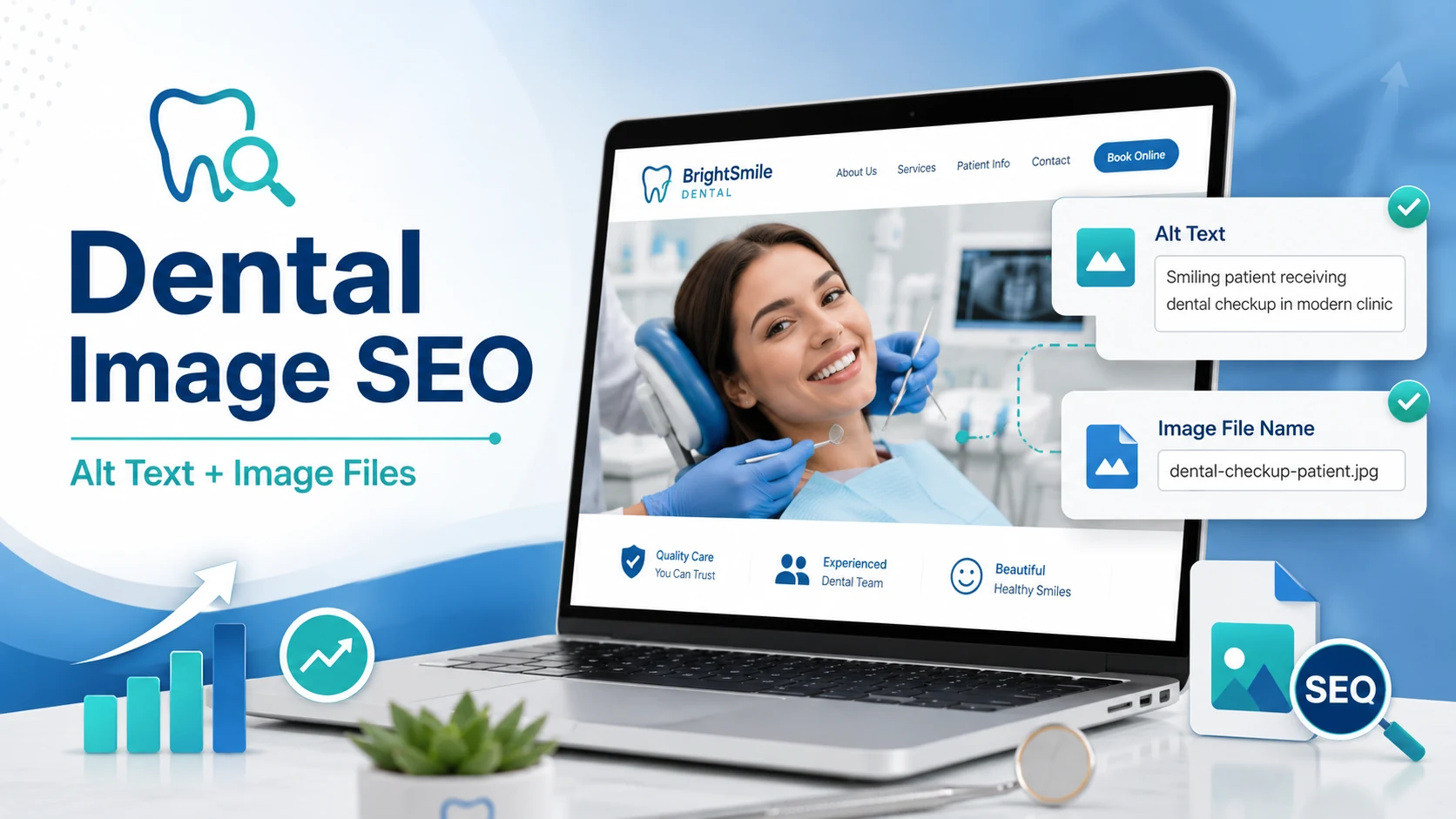 Dental image SEO comes down to optimizing two things on every practice photo: the alt text (a short, accurate description of what the image shows) and the image file itself (a descriptive filename, a modern format like WebP, and dimensions sized to the page)—so your images load fast, rank in image and AI search, and stay usable for every patient. Dental image SEO comes down to optimizing two things on every practice photo: the alt text (a short, accurate description of what the image shows) and the image file itself (a descriptive filename, a modern format like WebP, and dimensions sized to the page)—so your images load fast, rank in image and AI search, and stay usable for every patient.
Most dental websites treat images as decoration: a stock photo dropped in to break up text, uploaded straight from a phone with a name like IMG_4821.jpg and no alt text at all. That is a missed opportunity on three fronts at once—search visibility, page speed, and accessibility—and on a healthcare site it can also be a compliance risk.
Search has become visual. Google reports that its Lens tool now has more than a billion monthly users, and in 2025 it began letting people search with a photo in AI Mode—identifying objects in the image with Lens, then firing off several related searches at once to build an answer. AI Overviews increasingly place images alongside their text summaries. Vision models now effectively “read” the contents of an image, including any text baked into it, so the clarity and context around your visuals feed directly into how AI systems describe and surface your practice.
This guide covers both halves of image SEO for dental practices: how to write alt text that serves patients using screen readers and search engines at the same time, and how to name, format, compress, and mark up image files so they load fast and get understood. Because this is a healthcare context, it also covers the two compliance lines dental teams cannot ignore—patient-photo privacy under HIPAA and website accessibility under the ADA.
Written for: dental practice owners, office managers, marketing coordinators, and DSO marketing teams who publish photos, before-and-after galleries, and team pages and want them to help—not quietly hurt—rankings, speed, and compliance.
TL;DR
If you only remember a handful of things, remember these:
| • |
Write alt text for meaning, not keywords - describe what the image shows and why it is on the page in one natural sentence, skip “image of,” and leave purely decorative images with empty alt text
|
| • |
Name files like a human - use short, lowercase, hyphen-separated filenames, and never put a patient’s name or identifiers in a filename
|
| • |
Serve modern, right-sized files - use WebP or AVIF, compress sensibly, and resize to the dimensions the page actually displays
|
| • |
Protect your Core Web Vitals - set width and height on every image, lazy-load below-the-fold images, and never lazy-load your main above-the-fold image
|
| • |
Treat patient photos as protected health information - get separate written authorization before any before-and-after or identifiable patient image goes online, and strip metadata first
|
| • |
Make accessibility the standard - alt text is a WCAG requirement and a real ADA exposure for dental sites, not an optional extra |
Table of Contents
Why dental image SEO is now a ranking and accessibility issue
Every image on a dental website is doing several jobs at once, whether you have optimized it or not. It is a ranking signal, a page-speed factor, an accessibility element, and—when it shows a patient—a piece of protected health information. Optimizing images means making all of those jobs go well at the same time.
Images help search engines understand the page. Google cannot see a photo the way a person does; it reads the code around it. Your filename, the alt attribute, any caption, and the words near the image all tell Google what the picture is and, by extension, reinforce what the page is about. A dental implant page with a well-named, well-described implant photo sends a clearer, more consistent signal than the same page with a mystery file called IMG_2231.jpg.
Search is going visual and multimodal. With visual search now mainstream and AI Mode able to interpret an entire photo, images have become a discovery surface rather than page filler. Vision models break an image into pieces and effectively read it, and they run optical character recognition on any text inside it. That means the sharpness, context, and honesty of your images increasingly shape how AI systems describe and cite your practice in AI search—not just how they look to visitors.
Images decide how fast your page feels. On most pages, an image is the largest element a visitor sees while the page loads, which makes it the deciding factor in Largest Contentful Paint—one of Google’s Core Web Vitals. Heavy, oversized images are the most common reason a dental site feels slow, and slow pages lose visitors before the phone ever rings.
Images have to work for every patient. A patient using a screen reader relies on your alt text to know what a photo shows. Get it right and your site is usable and welcoming; skip it and you have both an accessibility failure and, for a healthcare provider, a documented legal exposure. We will come back to that.
> Back to Table of Contents
How to write alt text for dental images
Alt text—the alt attribute on an image—is a short written description of what an image shows. It does double duty: screen readers read it aloud to patients who are blind or have low vision, and search engines use it as the clearest clue they have about the image’s subject. Google’s own guidance treats the alt attribute as the most useful information you can give it about an image’s subject, which makes this the highest-leverage habit in all of image SEO.
Describe purpose and content in one natural sentence. Good alt text answers “what is this and why is it here?” rather than listing every visible object. On an implant page, “Dentist reviewing a dental implant model with a patient during a consultation” is far more useful than “tooth” or a keyword string. Write for a person first; the search benefit follows.
Keep it concise. Aim for roughly one sentence, around 100 characters. Some screen readers stop reading an alt attribute after about 125 characters, so front-load the meaningful part and cut filler. Ending the description with a period gives screen readers a natural pause.
Skip “image of” and “photo of.” Screen readers already announce that an element is an image, so those words waste the listener’s time. Start with the subject instead.
Use keywords only when they fit honestly. Alt text can include a relevant term when it genuinely describes the image, but stuffing keywords hurts both accessibility and SEO—and search engines are good at spotting it. “Clear aligner tray held between two fingers” is fine; “Invisalign dentist cheap braces near me aligners” is spam.
Match alt text to the image type. Not every image needs the same treatment:
| • |
Informative images - photos, diagrams, and charts that carry meaning get a concise descriptive alt attribute
|
| • |
Decorative images - background textures, dividers, and purely ornamental flourishes get empty alt text (an alt attribute left blank) so screen readers skip them instead of announcing a distracting filename
|
| • |
Functional images - a clickable phone icon or a logo that links home should describe the action or destination, such as “Call the office” or “Return to home page,” not its appearance
|
| • |
Text inside images - avoid baking important text into an image, but when you must, repeat that text in the alt attribute so it is not lost to screen readers or translation tools |
Do not repeat the same alt text on every image. A media library where a dozen images all read “dentist office” helps no one. Each description should reflect that specific picture.
> Back to Table of Contents
How to name and format your image files
Once the alt text is handled, the file itself is the next lever. Two things matter most here: what you call the file and what format you save it in.
Give files short, descriptive, human-readable names. Google says filenames give it “very light” clues about an image’s subject, and a name like teeth-whitening-before-after.webp beats DSC0049.jpg every time. A few rules that hold up well:
| • |
Be descriptive but brief - three to six words that actually describe the image, not an essay
|
| • |
Use hyphens, not underscores or spaces - search engines read hyphens as word separators but join words connected by underscores, so dental-implant-diagram.webp reads as three words while dental_implant_diagram.webp can read as one
|
| • |
Keep it lowercase - this avoids duplicate-URL headaches on case-sensitive servers
|
| • |
Rename before you upload - many content systems lock the filename into the image URL, so fixing it afterward is harder than doing it once up front |
There is one dental-specific caution that overrides the “be descriptive” rule: never put a patient’s name, initials, or record number in a filename. A file called jane-doe-implant-before.jpg turns a marketing asset into exposed protected health information. Describe the treatment, not the person.
Choose the right format for the job. Google Search supports JPEG, PNG, WebP, SVG, AVIF, GIF, and BMP, and it is good practice to make the file extension match the actual file type. In practice, for a dental site:
| • |
WebP or AVIF for photos - both are modern formats that typically cut file size by a third to a half versus older JPEG or PNG at similar quality, which is the single biggest speed win for most sites
|
| • |
JPEG as a compatible fallback - still fine for photographs when you need the broadest device compatibility
|
| • |
PNG for graphics that need transparency - logos or overlays with hard edges and transparent backgrounds
|
| • |
SVG for logos, icons, and simple line graphics - vector files stay razor-sharp at any size and are tiny |
Resize to what the page actually displays. Serving a 4000-pixel-wide photo into a slot that shows it at 600 pixels wastes most of the bytes a visitor downloads. Export images close to their display size, and use responsive image techniques (covered next) to serve smaller versions to phones. Then compress: a sensible quality setting removes weight a visitor will never perceive.
Favor original photography over stock where you can. Real photos of your office, team, and (with permission) results are more distinctive, build genuine experience signals that generic stock cannot, and give AI systems authentic content to understand. They also tend to convert better, because prospective patients want to see the actual practice.
> Back to Table of Contents
Image speed and Core Web Vitals
File format and size get you most of the way to a fast page. The markup around each image does the rest, and it maps directly onto Google’s Core Web Vitals—the loading, stability, and responsiveness metrics that feed into rankings and, more importantly, into whether visitors stay.
Set width and height on every image. When the browser knows an image’s dimensions in advance, it reserves the right amount of space before the file arrives, so text and buttons do not jump around as the page loads. That jumping is measured as Cumulative Layout Shift, and unset image dimensions are one of its most common causes. Use the image’s real pixel dimensions.
Lazy-load below-the-fold images—but never the top one. Setting loading="lazy" tells the browser to hold off downloading an image until the visitor scrolls near it, which frees up bandwidth for the content on screen. The critical exception: your main above-the-fold image (usually the hero) is almost always the Largest Contentful Paint element, and lazy-loading it delays the very thing Google is timing. Leave the hero to load eagerly, and consider fetchpriority="high" so the browser fetches it first instead of treating it like any other image.
Serve responsive images. The srcset and sizes attributes let you offer the browser several versions of an image at different widths and let it pick the best one for the device. A phone then downloads a phone-sized file instead of a desktop-sized one. This is one of the highest-impact changes for mobile speed, and most dental traffic is mobile.
Strip metadata before publishing. Photos straight from a phone or camera carry EXIF metadata—timestamps, camera details, and often GPS coordinates. It adds weight for no visitor benefit, and on a healthcare site the location and device data can be a privacy problem. Stripping EXIF on export keeps files lean and removes information that never belonged on a public page. Do not count on GPS metadata to help local rankings, either; it is routinely discarded in delivery and is not a confirmed ranking factor.
The payoff is concrete. Faster, more stable pages hold attention, and a site that passes Core Web Vitals gives everything downstream—paid ads, patient acquisition campaigns, and organic content—a better surface to convert on.
> Back to Table of Contents
Patient photos and HIPAA: the before-and-after trap
This is the section where well-meaning dental marketing most often goes wrong. Before-and-after smile galleries and patient testimonials are some of the most persuasive assets a practice has, and they are also where practices most commonly assume they are compliant when they are not.
Identifiable patient images are protected health information. If a photo identifies a patient and shows the result of treatment, it is PHI. HIPAA generally lets you create and use patient photos for treatment, payment, and healthcare operations without separate consent—but using them for marketing, including on your website or social media, falls outside those categories and requires the patient’s written authorization.
That authorization has to be its own document. The consent-to-treat form a patient signs at intake does not cover marketing use. A compliant marketing authorization is a standalone form that spells out what will be used (for example, before-and-after photos of the patient’s smile), who may use and receive it, the purpose, an expiration date or event, and the patient’s right to revoke in writing at any time. If a patient revokes, the images have to come down from every platform.
De-identification is harder than it looks. Cropping out the eyes is not enough. Under HIPAA’s Safe Harbor standard, full-face and comparable images count as identifiers, and distinctive features like tattoos or a unique smile, background details, or leftover file metadata can all re-identify a patient. If an image is still recognizable, treat it as PHI and get authorization.
Sanitize the file, not just the frame. This is where image optimization and privacy overlap. Before any patient image goes online, remove EXIF metadata (which can include the capture date, device, and GPS location) and make sure the filename and alt text contain no patient name, initials, or record number. The same descriptive-filename habit that helps SEO becomes a liability the moment it names a real person.
Loop in your vendors. Any outside partner that handles patient information on your behalf—including a marketing agency—should have a business associate agreement in place. State dental boards and the FTC add rules on top of HIPAA, including expectations around honest, unaltered before-and-after images and “results may vary” disclaimers.
This is general information, not legal advice. Confirm your specific consent forms, authorizations, and vendor agreements with qualified healthcare counsel.
> Back to Table of Contents
Accessibility and ADA compliance for images
Alt text is not only an SEO tactic; it is an accessibility requirement with real legal weight for dental practices. Missing alt text is one of the most common issues cited in website accessibility complaints.
Dental websites are covered. Dental practices are considered places of public accommodation under Title III of the ADA, and courts have repeatedly extended that to their websites—appointment booking, patient forms, and treatment information included. Website accessibility demand letters and lawsuits have climbed sharply in recent years, and healthcare providers are squarely among the targets.
WCAG is the standard everyone points to. The Web Content Accessibility Guidelines (WCAG) are the benchmark regulators and courts use. The Department of Justice’s 2024 Title II rule adopted WCAG 2.1 Level AA for state and local government websites, and that version has become the practical reference point for private businesses too. Providing a text alternative for every non-decorative image is a core WCAG requirement—the same alt-text habit described earlier. WCAG 2.2 Level AA is the current published version and the sensible target for future-proofing; it became an international standard in late 2025.
Accessibility overlays are not a fix. The pop-in “accessibility widgets” sold as one-click compliance do not resolve the underlying code issues—missing alt text, unlabeled form fields, poor contrast—and plaintiffs increasingly target sites that have one installed as a sign the box was checked without the work being done. The Federal Trade Commission reached a settlement with a major overlay provider over misleading compliance claims. Real accessibility comes from fixing the markup, and images are the easiest place to start: give every meaningful image accurate alt text, and mark decorative ones as empty.
Treat this as good practice and risk reduction rather than a legal opinion; a qualified accessibility professional or attorney can assess your specific site.
> Back to Table of Contents
Helping Google find and trust your images
Optimized images still need to be discoverable and clearly tied to your content. A few technical and editorial steps close that gap.
Put images near the text they illustrate. Google works out an image’s subject partly from the words around it, so place a photo next to the relevant copy and on a page that is actually about that topic. An implant photo belongs on the implant page, beside the paragraph describing the procedure—not floating in a gallery with no context.
Write captions where they help. Captions are among the most-read text on a page, and Google draws on them to understand images. They are optional, but for before-and-after cases, team members, or procedure photos, a short caption adds context for both visitors and search engines.
Add an image sitemap. Listing your images in a sitemap, or extending your existing sitemap with image entries, helps search engines crawl and index images they might otherwise miss—which matters for gallery pages and images loaded through scripts.
Use ImageObject structured data thoughtfully. Structured data that describes an image—its URL, caption, and licensing—can make it eligible for richer treatment in Google Images. Google has said no special schema is required to appear in AI Overviews, but accurate structured data that faithfully matches what is visible on the page reduces ambiguity for both search and AI systems. The key word is faithfully: markup should describe the real image, not oversell it.
For local visibility, feed Google Business Profile. Much of a dental practice’s image visibility happens off-site, in the local pack and map. Uploading clear, current, well-lit photos of your office, team, and exterior to your Google Business Profile does more for local discovery than any single on-page tweak. Add natural location context to on-page filenames and alt text where it is true (the neighborhood or city you serve), but do not rely on GPS metadata embedded in image files to lift local rankings—that is a persistent myth, and the data is usually stripped before anyone sees it.
> Back to Table of Contents
Your pre-publish image workflow
None of this has to be complicated once it becomes a habit. Here is a simple sequence to run before any image goes on a dental website, in order:
| 1. |
Confirm you have the right to use it - for any identifiable patient image, verify a current, signed marketing authorization is on file; for stock or licensed images, confirm the license
|
| 2. |
Sanitize the file - strip EXIF metadata and make sure no patient name or identifier appears in the filename
|
| 3. |
Name it well - short, lowercase, hyphenated, and descriptive of the subject
|
| 4. |
Right-size and convert - resize to display dimensions, save as WebP or AVIF, and compress
|
| 5. |
Write the alt text - one natural sentence describing purpose and content, or empty alt text if the image is purely decorative
|
| 6. |
Place and support it - drop it next to the relevant copy, add a caption if useful, and set width, height, and loading behavior in the markup
|
| 7. |
Check the result - view the page on a phone, confirm nothing shifts as it loads, and make sure the image looks sharp and appears quickly |
Run through it a few times and it becomes second nature. The practices that do this consistently end up with faster, more findable, more accessible sites—and a media library that is an asset instead of a liability.
> Back to Table of Contents
Work with a team that sweats these details
Image SEO is the kind of detail that quietly separates a dental website that performs from one that just exists. At WEO Media - Dental Marketing, we build and optimize dental practice sites with all of this in mind—search visibility, page speed, accessibility, and healthcare compliance—so your visuals work as hard as the rest of your marketing. If you would like a set of expert eyes on your website’s images and overall SEO, our team is happy to help. Call us at 888-246-6906 to start the conversation.
> Back to Table of Contents
FAQs
What is alt text and why does it matter for dental websites?
Alt text is a short written description added to an image in the page’s code. It lets screen readers describe photos to patients with visual impairments and gives search engines their clearest clue about what an image shows. On a dental site it supports accessibility, image search visibility, and ADA compliance all at once, which is why it is the most important image detail to get right.
How long should image alt text be?
Aim for roughly one natural sentence, around 100 characters. Some screen readers stop reading after about 125 characters, so put the meaningful description first and cut filler words. Describe the image’s purpose and content rather than every visible detail, skip phrases like “image of,” and end with a period so screen readers pause naturally.
Should I use WebP or AVIF for dental website images?
Both are modern formats that usually shrink photo file sizes by a third to a half compared with older JPEG or PNG at similar quality, which speeds up your pages. WebP has the widest support and is a safe default; AVIF can compress even smaller where your platform supports it. Keep an optimized JPEG as a fallback if you need maximum compatibility, and match the file extension to the format.
Can I put before-and-after patient photos on my website?
Yes, but only with the patient’s written authorization. An identifiable patient photo that shows treatment results is protected health information, and marketing use falls outside routine treatment operations. The consent-to-treat form signed at intake does not cover it; you need a separate authorization that names the use, allows revocation, and has an expiration. Strip metadata and keep patient names out of filenames, and confirm specifics with qualified counsel.
Do image file names really affect SEO?
Filenames are a light signal, not a magic switch. Google uses them as one clue among many about an image’s subject, so a descriptive, hyphenated, lowercase name like dental-implant-consultation.webp beats IMG_2231.jpg. Alt text and the surrounding page content carry more weight, but naming files well is a low-cost habit that helps, especially because the name often stays in the image URL after upload.
Why is my dental website slow, and could images be the cause?
Very often, yes. Images are usually the heaviest thing a page loads and the most common cause of a slow Largest Contentful Paint, one of Google’s Core Web Vitals. Oversized files, missing modern formats, and images served much larger than they display are the usual culprits. Converting to WebP or AVIF, resizing to display dimensions, and lazy-loading below-the-fold images typically make the biggest difference.
Are accessibility overlay widgets enough to make my images ADA compliant?
No. Overlay widgets do not fix underlying code problems like missing alt text, unlabeled forms, or poor contrast, and sites that rely on them are increasingly targeted in accessibility complaints. Real compliance comes from correcting the markup itself. For images, that means giving every meaningful image accurate alt text and marking purely decorative images as empty. Treat this as risk reduction and consult a professional for your specific site. |
|