Dental Website Migration Checklist
Posted on 7/8/2026 by WEO Media |
How to Move Your Site Without Losing Rankings or New Patients
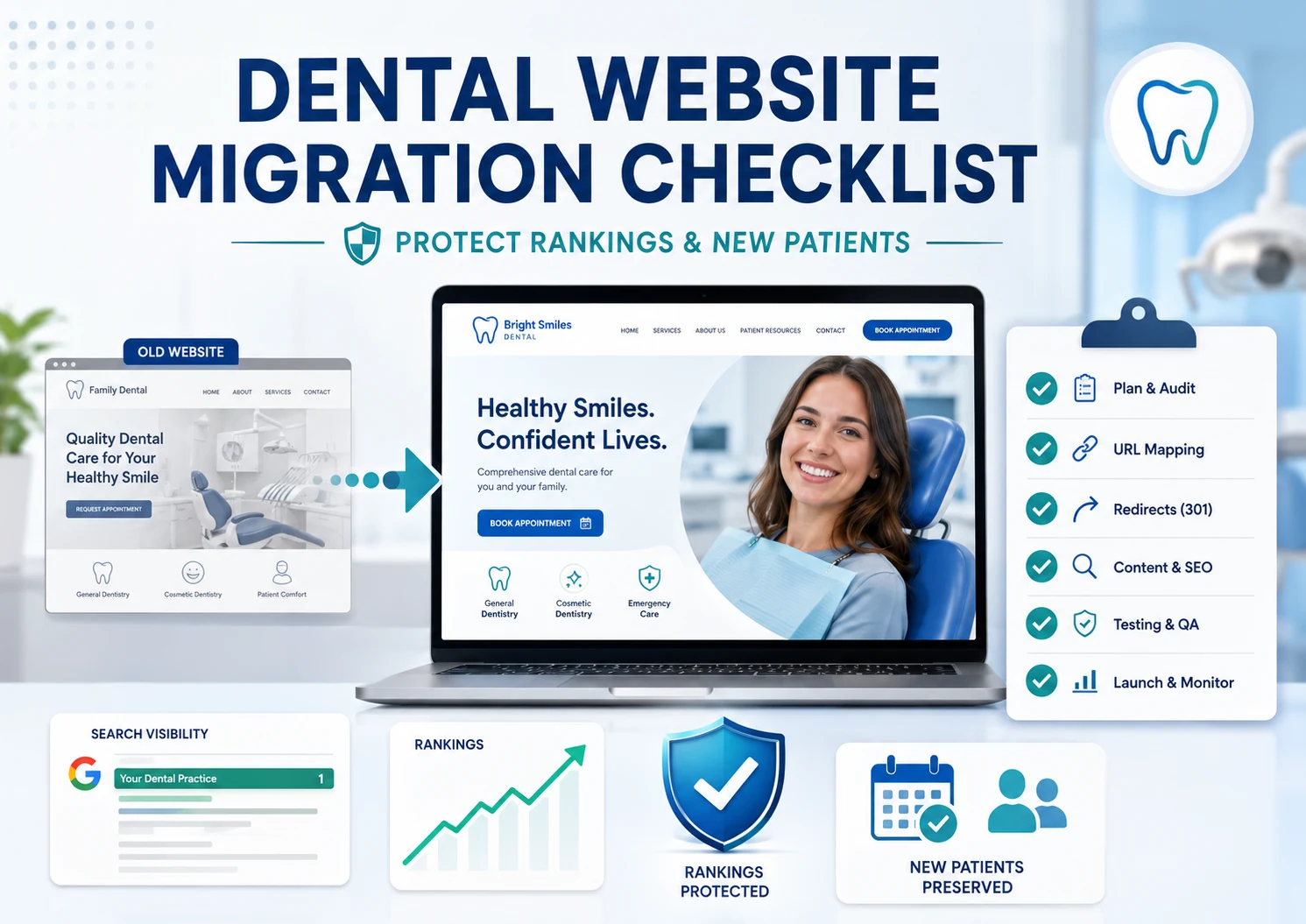 To move your dental practice website to a new design, platform, or domain without losing search rankings or new-patient calls, work through this dental website migration checklist in four phases: benchmark and inventory before you build, preserve your content and redirects while you stage, launch in a tight sequence, and verify and rebuild your local footprint after go-live. To move your dental practice website to a new design, platform, or domain without losing search rankings or new-patient calls, work through this dental website migration checklist in four phases: benchmark and inventory before you build, preserve your content and redirects while you stage, launch in a tight sequence, and verify and rebuild your local footprint after go-live.
A website migration is one of the few projects that can erase years of SEO progress in a single afternoon, but almost every disaster we see comes from preventable mistakes—a missing redirect, a staging block left in place, tracking that quietly stops firing—not from Google being harsh.
Whether you’re redesigning on the same domain, replatforming to a new content management system, or changing your practice name and domain after a rebrand or merger, the risk is the same: any time your URLs, content, or site structure change, the ranking equity, new-patient calls, and local listings tied to those pages are in play. This checklist covers what to protect at each phase so your new site launches as strong as the old one—or stronger.
Already mid-project with a developer? Skip to the phase you’re in. If your site is already live and traffic dropped, start with the post-launch and common-mistakes sections to find what broke.
Written for: dental and specialty practice owners, office managers, and marketing teams planning a website redesign, replatform, or domain change—and anyone who has been handed a migration and told to make sure nothing breaks.
TL;DR
If you only protect five things during a website migration, protect these:
| 1. |
Map and test every redirect - point each old URL to its closest new URL with a 301; never blanket-redirect everything to the homepage
|
| 2. |
Benchmark before you build - record current rankings, traffic, and top pages so you can prove recovery and spot what broke
|
| 3. |
Preserve content, schema, and on-page signals - a redesign that strips text, headings, internal links, or structured data drags rankings and AI visibility down with it
|
| 4. |
Remove the staging block at launch - a leftover noindex tag or disallow rule is the fastest way to disappear from Google
|
| 5. |
Rebuild your local footprint after go-live - update your Google Business Profile website link, key citations, tracking, and forms the moment the new site is live |
Table of Contents
Why a Website Migration Is High-Stakes for a Dental Practice
Your website is the hub that turns local search demand into booked appointments, so anything that changes how search engines and patients reach your pages carries real risk. When URLs, content, or structure change, four things are on the line at once: your rankings for the local and treatment terms that drive new patients, the links pointing at you from your Google Business Profile and directory citations, the forms and scheduling tools that route inquiries to your front desk, and the analytics that tell you whether any of it is working.
It helps to remember that dental search happens on two tracks, and a migration touches both. Provider-style searches like “dentist near me” are won largely in the local map pack and your Google Business Profile, while informational and treatment-research pages—how a procedure works, what to expect, how options compare—earn organic visibility and increasingly feed AI-generated answers. Move carelessly and you can dent both your map presence and your hard-won informational rankings in the same week.
A pattern we see often: a practice relaunches out of sheer excitement, leaves SEO out of the plan, and watches organic traffic fall the week after launch. The good news is that some temporary fluctuation is normal on any significant change, and a disciplined migration keeps the loss small and the recovery fast. The rest of this checklist is how you do that.
> Back to Table of Contents
Phase 1 — Before You Touch Anything: Benchmark and Inventory
The work that actually protects your rankings happens before the new site exists. Skip it, and you won’t be able to tell whether a post-launch dip is normal recrawl noise or a real problem you need to fix.
Benchmark Your Current Search Performance
For two to four weeks before launch, record where you stand: organic sessions and key events in Google Analytics 4, plus impressions, clicks, average position, top queries, and top pages in Google Search Console. Note your current rankings for your priority local and treatment terms and capture your Core Web Vitals. This baseline is the only way to later separate a normal reindexing dip from a broken redirect—it turns “we think traffic dropped” into “we measured exactly what changed.”
Crawl and Inventory Every URL (and Flag Your Money Pages)
Run a full crawl of the current site with a tool like Screaming Frog or Sitebulb and export every URL along with its title tag, meta description, H1, canonical, and status code. Then flag your money pages—the ones that actually earn new patients: your homepage, high-value treatment pages (implants, clear aligners, cosmetic, emergency, sedation), your new-patient and financing pages, your primary location and contact pages, and your best-performing blog posts. These get mapped and tested first, because losing a redirect on one high-authority page hurts more than losing it on fifty quiet ones.
Back Up the Current Site
Before anyone changes anything, take a full backup of content, database, media, and configuration. Keep a read-only copy of the old site available for a few weeks after launch so you can recover a page, an image, or a block of copy you didn’t realize you still needed.
> Back to Table of Contents
Phase 2 — Build and Stage the New Site Correctly
Build the new site in a staging environment that is blocked from search engines—with a noindex directive, a disallow rule, or password protection—and validate everything before it ever goes live. Just remember that whatever you use to hide staging has to come off at launch, because a block left in place is the most damaging mistake in this entire process.
Preserve Your Content and On-Page SEO Signals
A redesign strips content more quietly than any other failure mode. If a page ranked on 900 words of useful copy, clear headings, and internal links, and the redesigned version has 200 words and a hero image, the rankings follow the content down. Carry over the substance, not just the look: keep or improve your title tags, meta descriptions, H1s, body copy, image alt text, canonical tags, internal links, and structured data markup. That last one matters more every year—AI Overviews and answer engines lean on structured data and clear content to decide what to cite, so a migration that quietly drops your schema can drop you out of AI-generated answers along with it. Migrate the SEO value, not just the visual design.
Map Your 301 Redirects
This is the single step that most protects your rankings. Using your URL inventory, map each old URL to its closest equivalent new URL and set a permanent (301) redirect. The rules that matter most:
| • |
Use 301s, not temporary 302s - a 302 tells Google the move isn’t permanent and can hold back ranking signals
|
| • |
Avoid redirect chains - send each old URL straight to its final destination instead of through two or three hops
|
| • |
Don’t blanket-redirect removed pages to the homepage - it wastes ranking equity and drops patients on a page that doesn’t match what they clicked
|
| • |
Serve a 410 for pages that are truly gone - if a page has no equivalent and won’t return, a 410 (gone) is cleaner than a confusing redirect |
Permanent redirects don’t cost you link credit—a clean 301 passes it to the new URL—so the goal is simply to keep the paths clean enough for Google, patients, and AI answer engines to follow without friction. Build and test the redirect rules in staging by crawling your old URL list against them before launch.
Build In Website Accessibility from the Start
A rebuild is the most cost-effective moment to get accessibility right, because retrofitting it later costs far more. Most private dental practices fall under ADA Title III, and while no single federal technical standard is codified for Title III websites, the Web Content Accessibility Guidelines (WCAG) 2.1 Level AA are the benchmark that courts and plaintiffs routinely reference, with WCAG 2.2 as the current published version and a sensible forward-proofing target. Building conformance in during the rebuild—color contrast, keyboard navigation, descriptive alt text, labeled form fields—protects patients and reduces legal exposure. This is editorial guidance, not legal advice—confirm your obligations with qualified counsel.
Handle Patient Data and Forms Securely
Appointment requests, contact forms, and any patient portal or online-scheduling tool can collect protected health information, so a rebuild is the time to confirm they handle it safely: make sure they load over HTTPS, that any third-party tools carrying that data are covered by a business associate agreement, and that your analytics and advertising tags aren’t inadvertently capturing what patients type. As with accessibility, this is editorial guidance rather than legal advice—confirm your specific obligations with qualified counsel and your IT or compliance team.
Re-Test Every Third-Party Integration
Dental sites lean on tools that live outside the CMS: online scheduling, patient forms, payment and financing widgets, review displays, live chat, and call-tracking numbers. Any of these can break silently in a rebuild. On staging, submit a test appointment, submit each form and confirm the notification reaches the right person and a backup, place a test call through any tracking number, and check that your phone number and address display identically to your Google Business Profile and directory listings.
> Back to Table of Contents
Phase 3 — Launch Day Sequence
Launch day is execution, not exploration—everything was decided in Phase 2. Now you validate fast, in order.
| 1. |
Launch during off-peak hours - go live when few patients are on the site, such as early morning or late evening for most practices, so the team has room to fix surprises before traffic returns
|
| 2. |
Remove every staging block - delete the noindex tags, password protection, and any disallow rule from the production robots file, then confirm there is no stray noindex and no site-wide disallow on the live site
|
| 3. |
Turn on and test the 301 redirects - push the redirect rules live, then immediately crawl your money-page list and confirm each old URL returns a single 301 to the correct new URL
|
| 4. |
Confirm your canonical tags point to live URLs - make sure each new page’s canonical references the new URL, not a staging or old-domain address
|
| 5. |
Update DNS if you changed host or domain - point your nameservers or IP address to the new hosting and allow time for the change to propagate
|
| 6. |
Submit your updated XML sitemap - submit the new sitemap in Google Search Console and Bing Webmaster Tools, and use the URL Inspection tool to check and request indexing of key new URLs
|
| 7. |
File a Change of Address only for a true domain move - if you moved from one domain to another, use Google Search Console’s Change of Address tool after the 301s are live; do not use it for a same-domain redesign or an HTTP-to-HTTPS switch, where Google works out the change on its own |
Don’t wait for a full-site crawl to confirm your priority pages redirect correctly—check the money pages within minutes, not hours.
> Back to Table of Contents
Phase 4 — After Launch: Verify, Monitor, and Rebuild Your Local Footprint
The launch isn’t the finish line. The first days and weeks after go-live are where you catch problems while they’re still cheap to fix. Crawl the full live site immediately to surface broken links, missing pages, and redirect errors, then monitor Google Search Console daily at first and weekly after that: watch the Pages report for spikes in 404s and “not indexed” URLs, watch for redirect and sitemap errors, and watch Core Web Vitals—Largest Contentful Paint, Interaction to Next Paint, and Cumulative Layout Shift—on the new templates. Track your priority keywords against the pre-launch benchmark and investigate any that don’t recover.
Update Google Business Profile and Local Citations
Your local listings still point at the old site. Update the website link on your Google Business Profile to the new URL, or the correct new deep link for each location, then update your highest-value citations and directories so your name, address, and phone number match exactly and link to live pages. Inconsistent listings after a move confuse both patients and the local algorithm, and they’re a common reason map-pack visibility slips even when the main site recovers.
Re-Verify Analytics and Conversion Tracking
Confirm Google Analytics 4 is collecting on every new page and that your key events—form submissions, click-to-call taps, appointment requests—fire correctly on the new templates. Tracking that silently stops is how a “traffic drop” sometimes turns out to be a measurement gap rather than a real loss. Re-link and re-test any Google Ads conversion tracking so paid campaigns keep reporting, and make sure your call-tracking numbers survived the move.
> Back to Table of Contents
The Dental Website Migration Checklist (Quick Reference)
Use this as the at-a-glance version of the four phases above.
| • |
Benchmark - record two to four weeks of GA4 traffic and key events, plus Search Console impressions, positions, top queries, and top pages
|
| • |
Inventory - crawl and export every URL with its title, meta description, H1, canonical, and status code
|
| • |
Flag money pages - homepage, top treatment pages, new-patient and financing pages, primary location page, and best blog posts
|
| • |
Back up - full backup of content, database, and media, and keep the old site available read-only for a few weeks
|
| • |
Stage privately - build on a staging site blocked from search engines
|
| • |
Preserve content and schema - carry over copy, headings, title tags, meta descriptions, alt text, canonicals, internal links, and structured data markup
|
| • |
Map redirects - one 301 from each old URL to its closest new URL, with no chains, no blanket homepage redirects, and a 410 for pages that are truly gone
|
| • |
Build in accessibility and secure forms - target WCAG conformance and confirm forms and scheduling tools handle patient data safely
|
| • |
Test integrations - scheduling, forms, payments, chat, reviews, and call tracking, all on staging
|
| • |
Launch in order - off-peak timing, remove staging blocks, enable and test 301s, confirm canonicals, update DNS, submit the new sitemap
|
| • |
Change of Address - only for a true domain move, and only after the 301s are live
|
| • |
Rebuild local and verify tracking - update Google Business Profile and citations, and confirm GA4 key events and ad conversions still fire |
> Back to Table of Contents
Common Dental Website Migration Mistakes
These are the failures we see most often when a practice comes to us after a launch has gone sideways.
| • |
The staging block was never removed - a noindex tag or site-wide disallow rule left over from development quietly de-indexes the whole site; it is the most common and most damaging launch error
|
| • |
Redirects were blanket-pointed to the homepage - sending every old URL to the homepage instead of its true equivalent wastes ranking equity and drops patients on the wrong page
|
| • |
Content or schema was stripped in the redesign - the new pages look cleaner but lost the copy, headings, internal links, or structured data that earned the rankings and AI citations
|
| • |
Forms and scheduling broke silently - the site looks fine, but appointment requests and click-to-call events stopped reaching the front desk
|
| • |
Tracking wasn’t re-verified - analytics or conversion tags didn’t carry over, so leaders see a traffic drop that is partly a measurement gap
|
| • |
Local listings were left pointing at the old site - the Google Business Profile link and directory citations still send patients to dead or redirected URLs
|
| • |
The team panicked at a normal dip - a short fluctuation while Google recrawls is expected, and reversing changes mid-recovery usually makes it worse |
> Back to Table of Contents
How Long Until Rankings and Traffic Recover?
Some fluctuation is normal on any significant change while Google recrawls and reindexes your site, so don’t panic at a short-term dip. Reindexing usually takes a few weeks for a small-to-medium site and longer for a large one, and full ranking recovery can take longer still—a same-domain redesign generally settles faster than a domain change, which commonly takes a few months to fully stabilize. If you moved to a new domain and filed a Change of Address, Google actively maintains the relationship between the old and new domain for roughly 180 days, so keep your redirects live at least that long—and from a patient’s and a link’s perspective, keeping them in place indefinitely is safer. Keep paying for the old domain for at least a year after a domain change so no one else can buy it and misuse your former address. If a well-executed migration still shows pages that haven’t recovered well beyond those windows, the cause is almost always a specific, fixable issue—a missed redirect, a stripped page, or a leftover crawl block—rather than permanent damage.
> Back to Table of Contents
Planning a Dental Website Migration?
A website move is a cross-functional project that happens to involve SEO—not an SEO project that happens to involve everyone else—so the practices that come through it cleanly are the ones that plan for redirects, content, and local listings from day one. If you’d rather not gamble your rankings and new-patient calls on a launch, WEO Media - Dental Marketing plans and executes dental website migrations with the redirect mapping, content preservation, and local cleanup built in. Call 888-246-6906 to talk through your redesign, replatform, or domain change before you launch.
> Back to Table of Contents
FAQs
Will my dental practice lose Google rankings when I launch a new website?
Not if the migration is done carefully. Some temporary fluctuation is normal while Google recrawls and reindexes, but lasting losses almost always trace back to preventable issues—missing or incorrect redirects, content or schema stripped in the redesign, or a staging block left on the live site. Mapping and testing your redirects, preserving your content and on-page signals, and removing staging blocks at launch are what keep the drop small and the recovery fast.
Do I need 301 redirects if I’m keeping the same domain?
Yes, whenever your URLs change. Moving to a new content management system, restructuring your navigation, or cleaning up messy URL paths all change the addresses of your pages even on the same domain, so each old URL needs a 301 redirect to its closest new URL to carry its ranking equity across.
Should I use the Change of Address tool in Google Search Console?
Only for a genuine domain or subdomain move, and only after your 301 redirects are live. The tool tells Google to prioritize your new domain and forwards signals from the old one. Don’t use it for a same-domain redesign or an HTTP-to-HTTPS switch—Google works those out on its own.
How long should I keep the old URLs redirecting?
Keep 301 redirects live for at least 180 days, which is the window Google actively maintains the link between an old and new domain, and ideally keep them in place indefinitely from a user and link-equity standpoint. If you changed domains, keep paying for the old domain for at least a year so no one else can acquire it and misuse your former address.
Can I redirect old pages I’m deleting straight to my homepage?
No. Blanket redirects to the homepage waste ranking equity and drop patients on a page that doesn’t match what they clicked. Redirect each old page to its closest equivalent instead, and if a page is truly gone with no replacement, let it serve a 410 (gone) status rather than a misleading redirect.
What’s the most common reason a dental website launch tanks traffic?
A staging block left on the live site. A noindex tag or a site-wide disallow rule used to hide the site during development will de-index the whole thing if it isn’t removed at launch. Always strip those blocks the moment you go live and confirm the live site is crawlable.
Do I need to update my Google Business Profile after a website change?
Yes. Update the website link on your Google Business Profile to the new URL, then fix your directory citations so your name, address, and phone number match and point to live pages. Listings left pointing at the old site send patients to dead or redirected URLs and can slow your local map recovery.
Is a website redesign a good time to fix accessibility?
Yes. A rebuild is by far the most cost-effective time to build in WCAG 2.1 Level AA conformance, the accessibility benchmark most often referenced for practice websites, rather than retrofitting it later. Doing so protects patients and reduces exposure—though you should confirm your specific obligations with qualified counsel. |
|