Bing Places for Dentists: How to Set Up & Optimize Your Listing
Posted on 2/5/2026 by WEO Media |
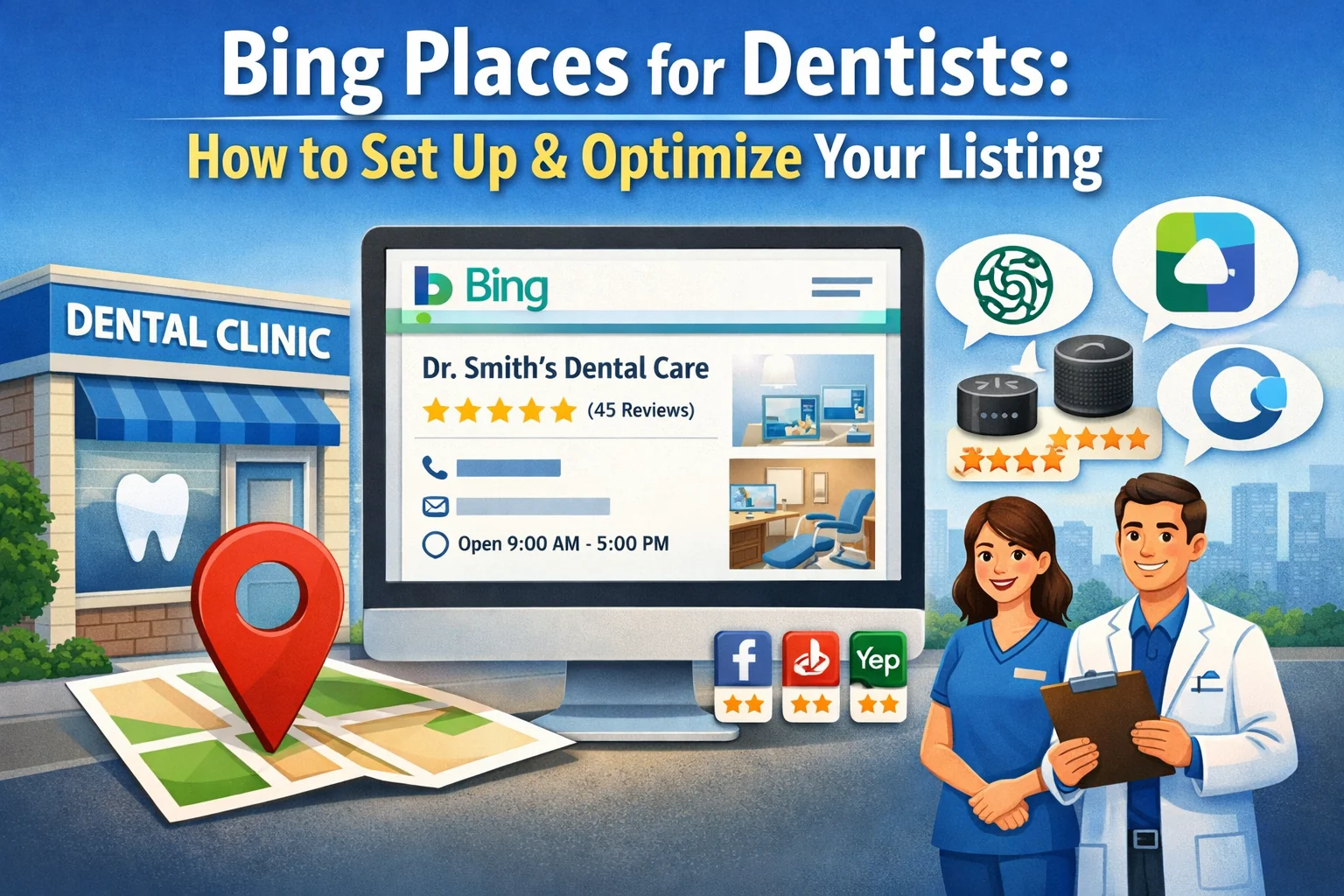 If your dental practice isn’t listed on Bing Places for Business, you’re invisible to millions of potential patients. While Google dominates search, Bing quietly powers search results for Microsoft Edge, Windows devices, Cortana, Amazon Alexa, and increasingly, AI assistants like ChatGPT and Microsoft Copilot. That means patients searching for a dentist through their work computer, smart speaker, or AI chatbot may never find you—unless your Bing Places profile is claimed and optimized. If your dental practice isn’t listed on Bing Places for Business, you’re invisible to millions of potential patients. While Google dominates search, Bing quietly powers search results for Microsoft Edge, Windows devices, Cortana, Amazon Alexa, and increasingly, AI assistants like ChatGPT and Microsoft Copilot. That means patients searching for a dentist through their work computer, smart speaker, or AI chatbot may never find you—unless your Bing Places profile is claimed and optimized.
The opportunity is significant and often overlooked. Bing holds approximately 8% of the U.S. search market and over 11% of desktop searches. For dental practices, that desktop percentage matters: many patients research healthcare providers during work hours on employer-managed devices where Bing is the default. Bing users also tend to skew toward older professionals with higher household incomes—exactly the demographic most practices want to attract. And because most dental offices focus exclusively on Google, competition on Bing is dramatically lower.
Already have a Google Business Profile? Good—you can import it directly into Bing Places in minutes. If you’re starting from scratch, this guide covers that too. For Google-specific optimization, see our guide on how to optimize Google Business Profile categories for dentists.
Below, you’ll learn how to create or claim your Bing Places listing, verify your practice, optimize every profile field, and maintain your listing for ongoing visibility. We’ll also cover common mistakes that hurt rankings and how to avoid them.
Written for: dental practice owners, office managers, and marketing teams who want to capture patient demand beyond Google and appear in AI-powered search results.
TL;DR
If you only do five things, do these:
| • |
Claim or create your listing at bing.com/forbusiness
— the new unified Bing Places dashboard launched October 2025 replaces the old bingplaces.com URL
|
| • |
Import your Google Business Profile — this copies your business info, photos, and categories and may provide instant verification if your GBP is already verified
|
| • |
Complete every profile field — name, address, phone, website, hours, description, and all applicable service categories for dental practices
|
| • |
Add at least 10 high-quality photos — Bing emphasizes images more than Google; include exterior, interior, team photos, and treatment rooms
|
| • |
Build reviews on Facebook, Yelp, and TripAdvisor — Bing pulls reviews from these third-party platforms rather than hosting its own review system |
Table of Contents
Why Bing Places matters for dental practices
Most dental marketing conversations focus exclusively on Google, and for good reason—Google handles roughly 90% of global search traffic. But ignoring the remaining 10% means leaving patients on the table. Here’s why Bing Places deserves attention:
Bing’s reach is larger than most practices realize
Bing has over 100 million daily active users and receives approximately 1.4 billion monthly visits. In the U.S. specifically, Bing captures around 8% of all searches and over 11% of desktop searches. For a dental practice, that could translate to dozens or hundreds of potential new patients each year who would otherwise never find you.
The Microsoft ecosystem amplifies this reach. Bing powers search in Microsoft Edge, Windows Search, Outlook, Microsoft Teams, Xbox, and Cortana. It also feeds data to Amazon Alexa for voice searches and increasingly powers AI assistants. When someone asks Copilot or ChatGPT for a dentist recommendation, the answer often draws from Bing Places data. If your practice isn’t listed, you won’t appear in these AI-generated results.
Bing users match the dental patient profile
Research shows Bing users tend to be older than average, more likely to hold professional positions, and have higher household incomes. According to Microsoft Advertising data, over half of Bing users are married with children, and nearly half have household incomes in the top 25%. These are homeowners and decision-makers—exactly the demographics that book comprehensive dental care, cosmetic procedures, and family dentistry.
Competition is dramatically lower
Because most businesses focus on Google, Bing listings face far less competition. The same optimization effort that might move you from page two to page one on Google could put you in the top three results on Bing. For practices in competitive markets, this makes Bing an efficient use of marketing resources. Understanding local SEO ranking factors helps you optimize for both platforms simultaneously.
> Back to Table of Contents
How to set up your Bing Places listing (step-by-step)
Microsoft redesigned Bing Places in October 2025, moving everything to a new URL and streamlining the setup process. Here’s how to get your dental practice listed:
Step 1: Go to the new Bing Places dashboard
Navigate to bing.com/forbusiness (not the old bingplaces.com URL). Click “New User” if you’re creating an account for the first time, or “Existing User” to sign in with your Microsoft account.
Use a business email address. Ideally, create or use a Microsoft account tied to your practice’s domain (like frontdesk@yourpractice.com). This makes it easier to transfer ownership later and maintains professional consistency. You can also sign in using Google or Facebook credentials if preferred.
Step 2: Choose your setup method
You have two options:
| • |
Import from Google Business Profile — if you already have a verified Google listing, this is the fastest path; click “Import from Google My Business” and select the practice you want to import; Bing copies your business details, photos, hours, and categories automatically; if your GBP is verified, you may receive instant verification on Bing
|
| • |
Create listing manually — if you don’t have a Google listing or prefer to start fresh, select your business type and location, then search for your practice name; if Bing finds an existing listing, claim it; if not, you’ll create a new one from scratch |
Important: Always search for your practice first before creating a new listing. Duplicate listings create confusion and can hurt your local search rankings on both Bing and Google.
Step 3: Enter your business information
Complete these fields accurately:
| • |
Business name — use your official practice name exactly as it appears on your signage and other directory listings; don’t add extra keywords like “Best Dentist in [City]”
|
| • |
Address — enter the physical location where patients visit; move the map pin if needed to ensure accurate directions
|
| • |
Phone number — use your main patient-facing phone line
|
| • |
Website URL — link to your practice homepage or a relevant landing page; ensure your dental website loads quickly and is mobile-friendly
|
| • |
Business segment and categories — select “Dentist” as your primary category and add secondary categories like “Cosmetic Dentist,” “Pediatric Dentist,” “Orthodontist,” or “Oral Surgeon” if applicable
|
| • |
Description — write a clear summary of your practice, services, and what makes you different; include relevant keywords naturally
|
| • |
Hours of operation — enter your regular hours and add special hours for holidays |
> Back to Table of Contents
Verification methods for dental offices
Verification confirms that you actually operate the dental practice you’re claiming. Without verification, your listing won’t appear in search results and you won’t be able to edit certain fields. Bing offers several verification options:
Phone verification (fastest)
Bing calls your listed business phone number with an automated message containing a PIN. Enter the PIN to verify instantly. This works best if someone is available to answer during business hours.
Text/SMS verification
Bing sends a PIN via text message to your business mobile number. Enter the code to complete verification. This is convenient if your front desk uses a cell phone for the practice line.
Email verification
Bing sends a verification code to your business email address. This option works well if your email is tied to your practice domain.
Postcard verification
Bing mails a postcard with a verification code to your business address. This takes 1–2 weeks but is useful if other methods aren’t available. Watch your mail carefully—the postcard can look like junk mail.
Pro tip: If you imported a verified Google Business Profile, you may skip verification entirely. Bing recognizes the existing verification and activates your listing immediately.
> Back to Table of Contents
How to optimize your dental Bing Places profile
Creating a listing is step one. Optimization is what makes that listing appear in search results and convert viewers into patients. In our work with dental practices, we find that fully optimized Bing profiles outperform incomplete ones significantly—both in visibility and patient inquiries.
Start here: Photos, categories, and business description have the biggest impact on rankings.
Complete every available field
Bing rewards completeness. Fill out every field available, including:
| • |
Business description — write 150–300 words describing your practice, services, technology, and patient experience; weave in relevant keywords like “family dentistry,” “dental implants,” or “emergency dental care” naturally
|
| • |
Service list — add all services you offer (cleanings, fillings, crowns, veneers, Invisalign, implants, etc.)
|
| • |
Payment methods — indicate accepted insurance and payment options
|
| • |
Amenities — note features like wheelchair accessibility, free parking, or child-friendly environment
|
| • |
Social media links — connect your Facebook, Instagram, and other social media profiles
|
Add at least 10 high-quality photos (Bing emphasizes images)
Bing places stronger visual emphasis than Google—images appear prominently in both Bing Search and Bing Maps results. Upload a variety of photos:
| • |
Exterior photos (at least 2) — help patients recognize your building when they arrive
|
| • |
Interior photos — show your waiting room, treatment rooms, and any notable features
|
| • |
Team photos — humanize your practice with images of dentists and staff
|
| • |
Technology photos — showcase modern equipment like digital X-rays or intraoral cameras
|
| • |
Logo — ensure your brand is visible |
Photo tips: Use high-resolution images (at least 720 pixels wide). Name files with relevant keywords before uploading (e.g., “dental-office-waiting-room-yourpractice.jpg”). Update photos seasonally or when you renovate. If you need quality images, consider investing in professional dental practice photography.
Choose precise categories
Your primary category should be “Dentist” or “Dental Clinic.” Add secondary categories for any specialties you offer, such as pediatric dentistry, orthodontics, or dental implants. Be specific—“Pediatric Dentist” performs better than generic categories. Don’t add categories that don’t apply; this can confuse the algorithm and hurt your rankings.
Keep hours accurate (especially holidays)
Nothing frustrates patients more than showing up to a closed office. Update your hours whenever they change, and use Bing’s special hours feature for holidays. Plan to set holiday hours 1–2 weeks in advance, as Bing reviews edits before publishing them live.
> Back to Table of Contents
How reviews work on Bing Places
Unlike Google, Bing doesn’t have its own native review system. Instead, Bing pulls reviews from third-party platforms and displays them on your listing. This means your Bing reputation depends on your presence elsewhere.
Where Bing pulls reviews from
Bing aggregates reviews from:
| • |
Facebook — recommendations on your practice’s Facebook page
|
| • |
Yelp — reviews on your Yelp business listing
|
| • |
TripAdvisor — less common for dental but may apply in tourist-heavy areas
|
| • |
Other industry directories — Bing may pull from additional sources depending on your category |
Build reviews on the platforms that feed Bing
To improve your Bing Places reputation, focus on earning reviews on Facebook and Yelp. Make it easy for patients to leave feedback by providing direct links after appointments. Don’t ask patients to leave only positive reviews—this violates platform policies and can result in penalties. For a comprehensive approach, see how to generate more five-star Google reviews—many of the same principles apply to Facebook and Yelp.
Respond to reviews (even though they’re on other platforms)
While you can’t respond to reviews directly within Bing Places, you should respond on the source platforms. Practices that respond to reviews—both positive and negative—demonstrate engagement and build trust. Address negative reviews professionally and work toward resolution. This shows potential patients that you take feedback seriously. Our guide on dental patient review responses provides templates and examples you can adapt.
> Back to Table of Contents
Ongoing maintenance and common mistakes
Setting up your Bing Places profile isn’t a one-time task. Ongoing maintenance ensures your listing stays accurate and competitive.
Review your listing monthly or quarterly
Check these items regularly:
| • |
Business information accuracy — confirm name, address, phone, and website are correct
|
| • |
Hours of operation — update for any schedule changes or upcoming holidays
|
| • |
Photos — add new images and remove outdated ones (especially after renovations)
|
| • |
Categories and services — add new services you’ve started offering
|
| • |
Review sources — check Facebook and Yelp for new reviews that need responses |
Keep Bing and Google in sync
If you imported your Google Business Profile, you can enable automatic syncing so changes to your Google listing update Bing automatically. This saves time and ensures consistency across platforms. Inconsistent information (different addresses, phone numbers, or hours) can hurt your rankings on both search engines. For best results on Google specifically, learn how to rank in the Google Map Pack.
Common mistakes to avoid
| • |
Creating duplicate listings — always search for your practice before creating a new listing; duplicates confuse search engines and split your visibility
|
| • |
Keyword stuffing in your business name — don’t add phrases like “Best Dentist” or “Affordable Dental Care” to your business name; this violates Bing guidelines and can get your listing suspended
|
| • |
Ignoring the listing after setup — stale profiles with outdated photos and hours signal to Bing that the business may be inactive
|
| • |
Forgetting about review platforms — since Bing pulls reviews from Facebook and Yelp, neglecting those platforms means having no reviews visible on Bing
|
| • |
Using a personal email for the account — if a staff member leaves and you lose access to the account, you may struggle to regain control of your listing |
Track your Bing Places performance
Bing Places provides analytics showing impressions, clicks, calls, and direction requests. Review these metrics to understand how patients are finding and engaging with your listing. Compare performance over time to see if your optimization efforts are working. For broader tracking across all channels, see our guide on how to track dental marketing ROI by channel.
> Back to Table of Contents
Get help with your dental local SEO
Bing Places is one piece of a comprehensive local SEO strategy for dental practices. When combined with an optimized Google Business Profile, consistent directory listings, and a strong reputation management presence, it helps ensure patients can find your practice wherever they search.
Don’t stop at Bing. For complete local visibility, also claim and optimize your Apple Maps business listing—it powers search results on iPhones, Siri, and CarPlay. Together, these directory listings form the foundation of your patient pipeline.
If you’d like help setting up, optimizing, or maintaining your practice’s local search presence across all platforms, our team can help. Contact us at 888-246-6906 or schedule a consultation to discuss your dental marketing needs.
> Back to Table of Contents
FAQs
Is Bing Places for Business free for dental practices?
Yes, Bing Places for Business is completely free to create, claim, and manage. There is no cost to list your dental practice, add photos, update your information, or appear in Bing search and map results. The platform generates revenue through optional paid advertising (Microsoft Ads), but the listing itself costs nothing.
How long does Bing Places verification take?
Phone and SMS verification are typically instant—you receive a code within seconds and can verify immediately. Email verification usually completes within minutes to a few hours. Postcard verification takes 1–2 weeks for delivery. If you import a verified Google Business Profile, verification may be automatic with no additional steps required.
Can I manage multiple dental office locations in Bing Places?
Yes, Bing Places supports multi-location management. You can add multiple practice locations under one account, use bulk upload tools for 10 or more locations, and manage all listings from a single dashboard. This is useful for dental groups and DSOs with multiple offices across different markets.
Why don’t I see reviews on my Bing Places listing?
Bing does not host its own review system. Instead, it pulls reviews from third-party platforms like Facebook, Yelp, and TripAdvisor. If your practice doesn’t have reviews on these platforms, your Bing listing will show no reviews. To build your Bing review presence, encourage patients to leave feedback on Facebook and Yelp.
How do I sync my Google Business Profile with Bing Places?
When setting up your Bing Places listing, select the option to import from Google Business Profile. Sign in with your Google account, select the practice you want to import, and Bing will copy your business details, photos, hours, and categories. You can also enable automatic syncing so future changes to your Google listing update Bing automatically.
What categories should I choose for my dental practice on Bing?
Select “Dentist” or “Dental Clinic” as your primary category. Add secondary categories for any specialties you offer, such as “Cosmetic Dentist,” “Pediatric Dentist,” “Orthodontist,” “Periodontist,” or “Oral Surgeon.” Only add categories that accurately describe services you provide—adding irrelevant categories can hurt your rankings.
How does Bing Places affect AI search results like ChatGPT and Copilot?
Microsoft Copilot and ChatGPT often use Bing data when answering questions about local businesses. If a patient asks an AI assistant for dentist recommendations in your area, a well-optimized Bing Places listing increases the likelihood of your practice being mentioned. As AI-powered search grows, having accurate Bing data becomes increasingly important for visibility.
How many photos should I add to my dental Bing Places listing?
Add at least 10 high-quality photos, though Bing allows up to 100. Include at least two exterior photos of your building, several interior shots of your waiting room and treatment areas, team photos, and your practice logo. Bing emphasizes images more than Google, so investing in quality photography can meaningfully improve your listing’s performance. |
|