Automated Dental Email Sequences That Scale Follow-Up for Practices
Posted on 1/12/2026 by WEO Media |
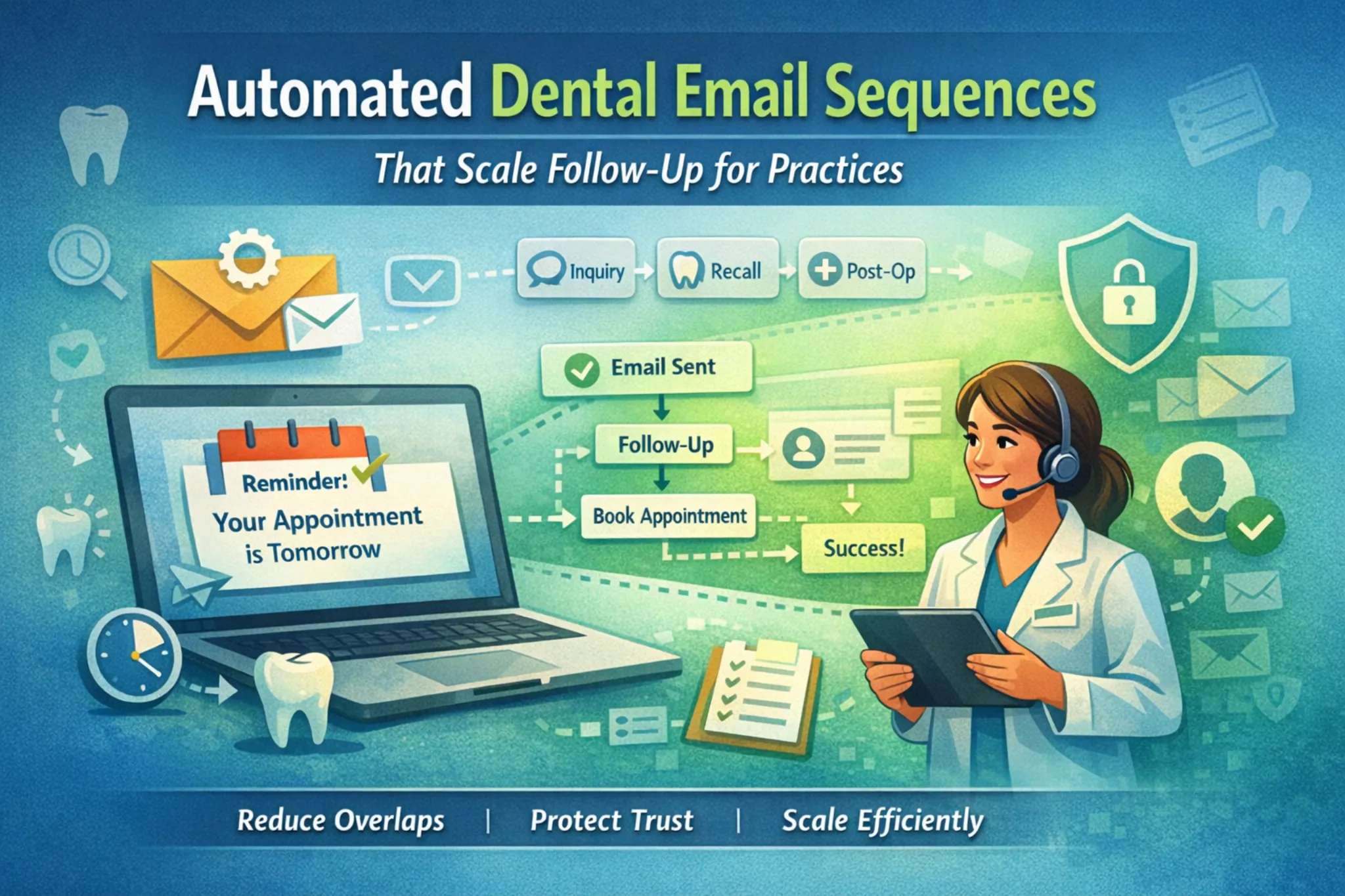 Automated follow-up only scales without harming trust when it’s treated as a governed communication system, not a pile of templates. Done well, automated dental email sequences reduce overlaps and prevent patient confusion while stabilizing front desk workload without creating a “monitored” or “spammy” patient experience. Automated follow-up only scales without harming trust when it’s treated as a governed communication system, not a pile of templates. Done well, automated dental email sequences reduce overlaps and prevent patient confusion while stabilizing front desk workload without creating a “monitored” or “spammy” patient experience.
Definition: Automated dental email sequences are trigger-based messages that send information based on a patient’s state (inquiry, upcoming appointment, post-visit, unscheduled treatment, recall, reactivation). A governance-first approach uses conservative content boundaries, household-safe wording, preference controls, caps, stop rules, and human escalation paths so automation feels like convenience, not surveillance.
Who this is for: owners, office managers, front desk leads, Dental Service Organization (DSO) operations teams, and marketing operations teams implementing dental follow-up email automation for single-location and multi-location practices.
Outcome promise: Reduce overlaps, prevent contradictory messaging, protect trust, and keep operations stable as follow-up scales.
What’s included: A quick start blueprint, data inputs checklist, governance rules, preference center mini-SOP, vendor governance checklist, deliverability setup, integration patterns, caps guidance, priority engine logic, sequence outlines, full email examples, monitoring playbook, change control workflow, and outcome-first measurement.
Table of Contents
Tip: Use the table of contents to jump to the section you need first, then return for the governance layers that prevent overlap and trust loss.
Quick Start: 7 Steps to Launch Governance-First Dental Follow-Up Email Automation
| 1. |
Define patient states and success events first (booked, scheduled, completed, resolved, manual handling). |
| 2. |
Classify messages into treatment/operations-style communications, promotional communications, and mixed follow-up so boundaries and opt-outs behave predictably. |
| 3. |
Write a content boundary spec: what’s allowed in subject lines, previews, first lines, bodies, and links by category. |
| 4. |
Set patient and household caps, plus narrow essential exceptions (closures, same-day changes, appointment-tied pre-op and post-op safety). |
| 5. |
Implement a priority order so only one sequence runs at a time, with send-time eligibility rechecks before every step. |
| 6. |
Operationalize replies: monitored inbox, routing, after-hours acknowledgments, and safe attachment handling. |
| 7. |
Launch in small cohorts, monitor guardrails (complaints, bounces, overlaps, deliverability signals), then expand only after stability is proven. |
Key takeaway: The safest launch order is governance first, messaging second.
Data inputs required before you build anything
| • |
Identity and contact - Patient ID, email address, phone, preferred language, communication preferences, guardian/responsible party fields when applicable. |
| • |
Scheduling - Next appointment date/time, appointment status (scheduled/confirmed/canceled/no-show/completed), appointment type, location, provider, booking channel when available. |
| • |
Clinical workflow signals - Recall due date/recall status, last visit date, active treatment status, treatment plan status (presented/scheduled/unscheduled/completed). |
| • |
Governance flags - Manual handling, complaint/dispute states, identity uncertainty, billing/collections suppression if policy requires it, deceased/inactive indicators if the system supports them. |
| • |
Household logic - Household key if available, or conservative household confidence rules for shared email handling. |
| • |
Events for measurement - Booked, confirmed, completed, rescheduled, reply received, opt-down/opt-out, hard bounce, complaint. |
If the practice cannot reliably populate these inputs, it is safer to start with fewer sequences and tighter eligibility rules rather than sending more messages based on uncertain data.
> Back to Table of Contents
Minimum Viable Implementation Blueprint: Roles, SOPs, and Ownership
Automation works when everyone knows what they own, what “stop” means operationally, and what happens when something misfires.
| • |
Front desk lead - Owns reply routing, confirmation workflows, preference updates by phone, and applying manual handling flags consistently. |
| • |
Office manager - Owns category definitions, cap policy, escalation rules, and incident approvals (pause/throttle/rollback). |
| • |
Marketing ops or vendor - Owns sequence build, suppression logic, deliverability setup, monitoring dashboards, and regression testing after changes. |
| • |
Clinical leadership input - Provides approved aftercare modules and pre-op requirements in standardized formats to avoid clinician-by-clinician bottlenecks. |
| • |
IT/security or compliance contact - Owns access controls, retention policies, vendor BAAs when tools handle PHI, and inbound attachment handling policy. |
Key takeaway: When ownership is unclear, automation failures become patient-facing problems.
Front desk SOP changes that keep automation accurate
| • |
Status updates - Appointment status and appointment type changes should be updated promptly so stop rules work as intended. |
| • |
Outcome codes - Use consistent outcomes (scheduled, rescheduled, declined, requested call-back) so reporting reflects reality. |
| • |
Manual handling flags - Apply flags for complaints, disputes, identity uncertainty, and sensitive situations so non-essential sequences pause. |
| • |
Reply tagging - Tag replies (schedule request, clinical question, billing question, language change, preference change) so routing and SLAs remain consistent. |
This SOP layer prevents the most common “automation feels uncaring” failure: the practice is doing the right thing manually, but the system keeps sending because the status trail never changed.
> Back to Table of Contents
Message Classification and Preferences
Classification is not just a marketing concept. It sets expectations for what patients receive, how opt-outs behave, and what belongs in email at all. Practice policy, state law, and professional board guidance may add requirements beyond HIPAA, so teams should document decisions and review them over time.
Terminology note: In this article, opt-down means reducing categories or frequency (or switching channels). Opt-out and unsubscribe refer to stopping promotional messages.
Do appointment reminder emails require consent? (email vs SMS vs calls)
Many practices treat appointment confirmations and reminders as operational communications and document a patient’s email address and preferences during normal intake. The practical governance standard is: make preferences easy to change, keep reminder content minimal, and honor reasonable requests for alternative means of communication.
SMS and automated calls can be governed differently than email, and rules vary by jurisdiction. In the U.S., teams often look to TCPA-related consent concepts for texts and certain automated calls, which is why practices typically treat SMS/call permissioning more strictly than email and align workflows with counsel.
| • |
Email (typical operational pattern) - Document address and preferences; keep content logistics-focused; make opt-down easy; separate promotional unsubscribes so reminders don’t break unintentionally. |
| • |
SMS (often stricter) - Confirm documented permissioning and opt-out behavior; use SMS primarily for short logistics; apply cooldowns to avoid stacking with calls and email. |
| • |
Calls (often strictest for automation) - Define what is manual vs automated; document when calls are appropriate; keep scripts non-shaming and purely logistical for reminders. |
HIPAA “marketing” vs “treatment/operations” in plain English
Health and Human Services (HHS) explains that HIPAA defines “marketing” and also describes exceptions where communications are not treated as marketing when they relate to treatment or certain healthcare operations activities. Authorization questions become more likely when messages involve third-party promotion, remuneration, or incentive-style outreach.
Micro decision rules for common dental examples
| • |
Recall reminder - If it is framed as routine care continuity and uses household-safe wording, treat as care-continuity messaging with strict boundaries and preference controls. |
| • |
Unscheduled treatment follow-up - If it supports planning and questions without incentive language, treat as mixed follow-up with short windows, fast stop rules, and human escalation. |
| • |
Elective cosmetic promotion or incentive - If it resembles advertising or includes discounts, treat as promotional and ensure unsubscribe behavior and bulk-sender expectations are met. |
A practical way to keep this consistent is to decide the category before copy is written, then enforce boundaries and opt-outs at the platform level so individual writers do not accidentally change the message’s “primary purpose.”
Unsubscribe vs operational reminders: a safe implementation rule
| • |
Promotional unsubscribe is always honored - If a patient opts out of promotional email, stop that category reliably across systems. |
| • |
Operational categories offer opt-down and channel swaps - Let patients reduce frequency, switch channels (where consent and policy allow), or choose phone-first scheduling support. |
| • |
Essential logistics are policy-defined - If the practice has “essential logistics” exceptions (closures, same-day changes, appointment-tied preparation), document them and keep content strictly logistical and household-safe. |
This policy prevents a common trust break: a patient tries to “stop the marketing,” but reminders disappear too, and the practice is blamed for disorganization.
CAN-SPAM “primary purpose” and operational requirements for promotional categories
CAN-SPAM treats messages differently based on whether the primary purpose is commercial versus transactional/relationship, and mixed messages require careful evaluation.
| • |
Avoid deceptive routing - Use accurate “From,” “To,” and routing details; avoid misleading header information. |
| • |
Avoid deceptive subjects - Subject lines should match the content and not imply urgency or sensitive detail that isn’t present. |
| • |
Identify the message as an ad (when applicable) - Promotional email should be clearly identifiable as advertising; guidance allows flexibility in how that disclosure is presented. |
| • |
Include a valid physical postal address - Promotional messages typically require a valid physical postal address. |
| • |
Provide a clear opt-out - Make opt-out easy to find and easy to use for promotional messages. |
| • |
No fee, no extra info, no extra steps - Do not charge a fee to opt out, do not require information beyond an email address, and do not require multiple steps to submit an opt-out. |
| • |
Honor opt-out timelines - FTC guidance notes opt-out requests must be honored within 10 business days. |
If the practice sends both operational and promotional email, separating streams (and their rules) makes preference handling simpler and reduces the chance that an unsubscribe disables important logistics.
Recommended preference options (what the preference page can include)
| • |
Promotional - “Stop promotional emails” (unsubscribe). |
| • |
Operational reminders - “Standard reminders” vs “minimal reminders,” plus phone-first scheduling support when preferred. |
| • |
Education vs scheduling - Separate toggles for educational content vs scheduling logistics (if the program includes both). |
| • |
Channel preference - “Email for updates,” “SMS for reminders,” “Call me for same-day changes” (subject to consent and policy). |
| • |
Language preference - Preferred language selection with a simple “reply to update language” option. |
| • |
Caregiver/guardian notes - A way to document shared inbox reality and household-safe defaults where appropriate. |
What the preference page can look like (plain-English options)
| • |
“Send me only appointment updates” - Keeps reminders and essential logistics; stops promotional messages. |
| • |
“Send me fewer reminders” - Reduces reminder frequency while preserving confirmations and time-sensitive changes. |
| • |
“Text me reminders instead of email” - Switches reminder channel where documented consent and policy allow. |
| • |
“Call me for urgent changes” - Sets expectations for same-day changes while keeping routine updates minimal. |
| • |
“Update my language preference” - Ensures future messages are sent in the preferred language. |
Preference system of record (so preferences don’t drift)
Preferences should have a documented system of record and a conflict rule for when systems disagree. Without that, an opt-down request can be honored in one tool and silently undone by another sync.
| • |
Choose a system of record - Often the PMS for core contact preferences, with the messaging platform consuming it rather than overriding it. |
| • |
Define conflict rules - Most restrictive preference wins until verified, especially for shared inbox risk. |
| • |
Sync monitoring - Alert on “suppressed address reappeared” events so drift is fixed before patients notice. |
Key takeaway: Preferences are a patient trust feature, but only if the practice can honor them consistently.
> Back to Table of Contents
Preference Center Mini-SOP: Processing Opt-Down Requests Reliably
A preference system is only as trustworthy as the workflow behind it. Patients judge whether the practice listens based on whether changes actually take effect.
| • |
Intake script - "Would you like fewer messages, different categories, or a different channel for reminders?" |
| • |
Update steps - Apply the preference in the system of record first, then ensure downstream tools reflect the change. |
| • |
Verification step - Confirm the patient's email address and whether it is shared; default to household-safe settings when uncertain. |
| • |
Processing SLA - Process opt-down and opt-out requests within one business day whenever possible. |
| • |
Confirmation template - "We updated your preferences. You will receive fewer messages starting now. If you need help scheduling, call [Phone Number]." |
| • |
Blocked-link resolution - If a preference link is blocked, process by phone and document the change; avoid asking the patient to "try again" repeatedly. |
This is also where “preference controls shouldn’t feel like a runaround” becomes operational reality: a human can update preferences even when a link does not work.
> Back to Table of Contents
Vendor Checklist: HIPAA-Aligned Automation Operations
When tools create, receive, maintain, or transmit PHI on behalf of a practice, HIPAA business associate arrangements and safeguards generally apply for that scope. The exact scope depends on how the tool is configured and what data it touches.
| • |
BAA coverage - Confirm which tools handle PHI and whether a business associate agreement is required for that scope (ESP, CRM, middleware, form tools, call tracking, ticketing). |
| • |
Encryption safeguards - Confirm encryption in transit and at rest for message logs, attachments, and data syncs when PHI is in scope. |
| • |
Access controls - Role-based access, least-privilege permissions, MFA/SSO where available, and export restrictions for lists and logs. |
| • |
Audit logs - Ability to review who changed templates, automations, suppression rules, and who accessed sensitive communications. |
| • |
Where logs are stored - Document where message logs, replies, and attachments live, and how access is restricted and audited. |
| • |
Retention and deletion - Policies for message logs, replies, and attachments aligned with security and recordkeeping requirements. |
| • |
Breach and incident process - Defined notification and containment procedures when mis-sends or security events occur, including subprocessors. |
A vendor checklist is not just procurement. It is how the practice prevents “we didn’t know the tool stored attachments” incidents and how it builds a defensible operations record.
Security and risk questions teams commonly ask vendors
| • |
Independent assurance - Do you have SOC 2 or similar controls reporting, and what scope does it cover? |
| • |
SSO and MFA - Do you support SSO, MFA, and role-based access for every user type (including contractors)? |
| • |
Data residency - Where is data stored, and can storage location be configured if required by policy? |
| • |
Backups and recovery - What are backup and recovery practices for message logs, templates, and automation configs? |
| • |
Subprocessors - Which subcontractors handle data, and how are they governed and disclosed? |
| • |
Incident support - What is the vendor’s SLA for security incidents and deliverability incidents? |
> Back to Table of Contents
Deliverability Setup for Dental Practices
Deliverability is an operational risk because reminders that land in spam create missed appointments, confusion, and avoidable staff work. Inbox providers evaluate authentication, complaints, bounces, and sending consistency, so governance-first automation supports deliverability by reducing negative signals and preventing sudden volume spikes.
Mailbox provider requirements (Gmail, Yahoo, Microsoft/Outlook, and others)
Many mailbox providers publish sender expectations that converge on the same themes: authenticate your mail, align domains, make unsubscribing easy for promotional categories, keep complaint rates low, and avoid sudden volume spikes. Requirements and enforcement vary by provider, so it is safer to build to a strict baseline for promotional email while keeping operational messages minimal and consistent.
If the practice sends meaningful volume, it’s worth assigning someone to review provider-facing deliverability resources and complaint monitoring options, including feedback-loop style concepts where available. Even without a formal “feedback loop,” treating complaints as a governance signal (not a marketing metric) improves long-term inbox placement.
Acronym key (quick reference)
| • |
PMS - Practice management system (often the system of record for scheduling and patient preferences). |
| • |
ESP - Email service provider (delivery layer for email sends). |
| • |
SPF - A DNS record that lists who is allowed to send email for a domain. |
| • |
DKIM - A signing method that helps inboxes verify authenticity and integrity. |
| • |
DMARC - A policy and reporting layer that helps enforce and observe authentication and alignment outcomes. |
| • |
Alignment - Whether the visible “From” domain aligns with authenticated domains in a way inbox providers expect. |
| • |
ARC - A mechanism discussed in sender guidance that can help preserve authentication results through forwarding paths. |
| • |
List-Unsubscribe - An email header used to support unsubscribe links and, in some cases, one-click behavior for bulk promotional mail. |
Minimum deliverability setup checklist (actionable defaults)
| • |
Use a consistent sending identity - Keep the visible “From” identity stable so patients recognize messages and inboxes see consistent patterns. |
| • |
Separate operational vs promotional streams - Different cadences, different risk profiles, and different unsubscribe rules are easier to manage when streams are separated. |
| • |
Prefer a sending subdomain strategy - Many practices keep the main domain stable for the website while using a controlled sending subdomain for high-volume email to reduce blast radius if issues occur. |
| • |
Authenticate and align - Ensure SPF/DKIM/DMARC are not only present but passing and aligned on real message headers. |
| • |
Transport basics - Ask your vendor to confirm modern transport protections (TLS) and IP identity basics like reverse DNS/PTR for sending infrastructure when applicable. |
| • |
Hygiene and suppression are non-negotiable - Hard bounces and opt-outs must suppress quickly and persistently across tools. |
| • |
Ramp reactivation carefully - Reactivation is where bounces and complaints spike; cohorts and volume control matter more than copy changes. |
These defaults make deliverability a repeatable system, not a week-to-week guessing game.
Non-technical checklist: SPF, DKIM, DMARC, and alignment
| • |
SPF - Authorizes sending systems to send on behalf of a domain, reducing spoofing risk. |
| • |
DKIM - Signing that helps inboxes verify authenticity and protect against message tampering. |
| • |
DMARC - Policy and reporting layer that helps enforce alignment and visibility into authentication failures. |
| • |
Alignment - Many bulk-sender guidelines expect the “From” domain to align with authentication results so branded messages are trusted. |
What alignment means in practice (and what to ask to see)
| • |
Practical meaning - The domain patients see in the “From” line should match, or properly align with, the domain being authenticated through SPF/DKIM/DMARC. |
| • |
What to ask your vendor or IT to show - A real message header example demonstrating authentication passes and alignment outcomes for your sending domain(s). |
| • |
Common misconfiguration - Messages send from a branded “From” domain, but authentication is performed on a different domain in a way that fails alignment expectations; inboxes treat that mismatch as a risk signal. |
List-Unsubscribe and one-click unsubscribe in practice
One-click unsubscribe is not just “a link in the footer.” It typically depends on the List-Unsubscribe email header, which mailbox providers can surface directly in the inbox UI for subscribed promotional messages. Many one-click implementations also require the companion header List-Unsubscribe-Post: List-Unsubscribe=One-Click (sometimes described by providers as the “POST” mechanism), which enables the inbox to process an unsubscribe action without sending a reply email or forcing a multi-step form. The operational takeaway is the same: the promotional stream must accept unsubscribe signals and process them quickly, without breaking appointment logistics.
| • |
What “one-click” means conceptually - The inbox provides an unsubscribe action that does not require logging in or completing multi-step forms. |
| • |
What the operations team must ensure - The promotional unsubscribe suppresses future promotional sends, syncs across platforms, and does not accidentally remove operational messaging unless policy explicitly says so. |
| • |
Processing expectation - Bulk sender guidance expects unsubscribe requests for subscribed promotional messages to be processed within 2 days (48 hours) in applicable cases. |
ARC and forwarding edge cases (when you’ll notice it, and what to ask for)
Forwarding and corporate gateways can change how authentication behaves. Sender guidance discusses ARC as a way to preserve authentication results across forwarding scenarios.
| • |
When you’ll notice it - Patients say “I didn’t get it,” especially when using corporate email; delivery looks fine in some inboxes but inconsistent in forwarded inboxes. |
| • |
Symptoms that look like “random spam placement” - A particular employer domain misses messages, or forwarded messages lose authentication signals and land in junk. |
| • |
What to ask your ESP - Whether ARC is supported, where it is applied in the sending pipeline, and what monitoring exists for forwarding-related failures. |
| • |
Decision rule - If you expect significant forwarding (corporate domains, shared family rules), treat ARC support as a deliverability requirement to review. |
Bulk sender thresholds and spam rate guardrails (commonly searched numbers)
Google’s sender guidance defines bulk senders as those who send 5,000+ messages per day to Gmail accounts. It also includes commonly referenced spam rate guardrails: target around 0.1% and avoid sustained spam rates at 0.3% or higher. Treat these as guardrails plus a baseline-first rule: sudden movement from your baseline is still a trigger for investigation.
Postmaster Tools: what to look at weekly
| • |
Authentication pass trends - Watch whether SPF/DKIM/DMARC passing rates shift after tool changes or new sequences. |
| • |
Spam rate movement - Investigate spikes early, especially after reactivation cohort expansion. |
| • |
Reputation-style indicators - Use reputation trends as early warning signals that precede inbox placement problems. |
| • |
Trend correlation - Tie sudden changes to operational events (new cohort launch, template changes, domain/auth updates). |
Deliverability troubleshooting tree (when “everything passes” but you still hit spam)
| 1. |
Confirm authentication and alignment outcomes on real message headers (not just DNS records). |
| 2. |
Check list hygiene signals: hard bounces, stale addresses, and role-based inbox concentration. |
| 3. |
Review sending patterns: volume spikes, sudden cohort expansion, and reactivation sends without recency batching. |
| 4. |
Review complaints and unsubscribes by category (promotional vs operational vs mixed). |
| 5. |
Review content and link patterns: urgency language creep, too many redirects, link shorteners, and tracking-domain reputation issues. |
| 6. |
Review sync drift: opted-out or bounced addresses reintroduced by a PMS-to-ESP mismatch. |
Common dental practice failure points (high-impact “top offenders”)
| • |
Branded domain mismatch - “From” looks like the practice, but authentication aligns to a different domain; inboxes treat the mismatch as risk. |
| • |
Tracking domains and redirect chains - Multiple redirects, shorteners, or unfamiliar tracking domains can increase filtering risk and reduce trust. |
| • |
Reply handling loops - Auto-replies or misrouted replies can create backscatter and mailbox noise; route replies cleanly and avoid triggering loops. |
Warming and cohorting strategy
| • |
Start with operational messages - Lower complaint risk and clearer intent helps build stable sending patterns. |
| • |
Introduce reactivation in small batches - Recency-based cohorts reduce bounces and complaints compared to “send to everyone inactive.” |
| • |
Stabilize volume - Sudden spikes can trigger filtering; ramp predictably and pause when guardrails move. |
Bounce handling workflow (operationally, not just technically)
| • |
Hard bounce - Suppress future sends immediately to protect sender reputation. |
| • |
Staff task - Create a work item for the front desk to verify contact info at the next interaction or via approved outreach. |
| • |
System update - Update the system of record so the correction persists across tools and prevents re-mailing the bad address. |
| • |
Alternative channel - Offer phone-first or mail-based reminders when email is unreliable or unwanted. |
Key takeaway: Deliverability improves when bounces and unsubscribes are treated as governance signals, not just email metrics.
> Back to Table of Contents
Integrations and Data Inputs: How This Connects in the Real World
The safest integration approach is tool-agnostic: define sources of truth, acceptable latency, and eligibility checks that run at send time.
Minimum required fields by sequence (fast checklist)
| • |
Reminders - Next appointment date/time, status, type, location, provider, phone/hours routing, channel permissions where applicable. |
| • |
Recall - Recall due date/status, last visit date, preferred location/routing, suppression and preference flags. |
| • |
Unscheduled treatment follow-up - Treatment plan status, routing rules, manual handling flags, stop events. |
| • |
Reactivation - Last visit date, bounce history, opt-out flags, cohort recency grouping. |
| • |
Closures - Closure flag, reopening timeline, affected appointment list, reschedule workflow routing. |
Common sync patterns
| • |
Nightly batch sync - Common and cost-effective, but requires buffers and send-time checks to avoid stale status conflicts. |
| • |
Near real-time sync - Reduces overlap risk but still needs eligibility rechecks because identity and preferences can change. |
| • |
Hybrid - Real-time for appointments and cancellations, nightly for historical fields like last visit and recall due. |
Failure modes that break stop rules (what to watch for)
| • |
Duplicate patient records - Same person appears twice; sequences enroll twice; stop events only reach one record. |
| • |
Shared family emails - One inbox receives multiple patients’ reminders; household-safe defaults and caps are essential. |
| • |
Appointment type mapping drift - Hygiene vs emergency types shift after booking, but prep instructions don’t update. |
| • |
Provider/location mismatch - Routing points to the wrong front desk due to late location updates. |
| • |
Deleted appointment edge cases - A canceled appointment is deleted rather than marked canceled; stop logic must handle absence vs status. |
Sources of truth example (PMS vs ESP)
| • |
PMS as source of truth - Appointment status, recall due dates, and contact preferences generally live here first. |
| • |
ESP as delivery layer - The ESP should consume source fields and apply stop rules; it should not become the primary place preferences are edited unless policy explicitly says so. |
| • |
Latency buffer - If cancellations can take hours to sync, add a buffer before sending the next step and recheck eligibility right before sending. |
Worked integration example: third-party booking vs PMS updates
| • |
What goes wrong - A patient books through an online scheduler, but the stop event doesn’t reach the email platform until later. |
| • |
What prevents it - Appointment existence checks run at send time, not just at enrollment time. |
| • |
Operational impact - Nurture and reactivation steps do not send after booking, even if the sync lags. |
Worked integration example: multi-location cancel and rebook
| • |
What goes wrong - A patient cancels at Location A and rebooks at Location B; reminders point to the wrong desk due to late location updates. |
| • |
What prevents it - Send-time rechecks for location, phone, and hours before sending each reminder step. |
| • |
Operational impact - Patients get the correct phone number, hours, and routing for the appointment they actually have. |
Eligibility checks that prevent common misfires
| • |
Appointment existence before each send - Prevents “keep nurturing” after a patient books through any channel. |
| • |
Manual handling suppression - Stops non-essential messaging during complaints, disputes, or identity uncertainty. |
| • |
Preference recheck - Prevents drift where an opt-down request is ignored by a downstream tool. |
| • |
Household-safe logic - Suppresses non-essential sends when the email appears reused or unrelated across records. |
> Back to Table of Contents
Content Boundaries: What Is Safe to Put in Email
HHS says providers may communicate with patients by email when reasonable safeguards are applied, and patients can request alternative means or locations for communications if the request is reasonable. HHS also notes that when a patient initiates email, a provider can generally assume email is acceptable unless the patient says otherwise, and providers may warn patients about the risks of unencrypted email.
Operational nuance: The “minimum necessary detail” approach here is a conservative communications principle. It aligns with the idea of limiting the amount and type of information in unencrypted email, while keeping the practice’s policies and context in mind.
Is encryption required? When should email move to a portal or secure channel?
HIPAA does not prohibit unencrypted email for treatment-related communications, but HHS emphasizes reasonable safeguards such as verifying addresses and limiting sensitive detail. A practical rule of thumb is to keep email focused on scheduling, logistics, and support options, and to move detailed clinical information, imaging, or sensitive attachments to a secure channel that matches the practice’s security policy.
Household-safe rules for subject lines, previews, and links
| • |
Assume sharing - Write subject lines and previews as if a spouse, caregiver, or employer might see them. |
| • |
Avoid stigma topics - Do not reference gum disease, smoking, pregnancy, oral hygiene habits, finances, or collections in subject lines or previews. |
| • |
Avoid surveillance language - Skip “we noticed you clicked/opened” phrasing entirely. |
| • |
Avoid PHI in URLs - Links should not contain sensitive context that could appear in browser history, referrer logs, or link previews. |
Reason-for-message placement (so it feels caring, not bureaucratic)
A short reason line lowers anxiety without sounding like a legal disclaimer. It also reduces “why are you emailing me?” complaints.
| • |
Appointment reminders - Put the reason in the first line: “This is a reminder about your scheduled visit.” |
| • |
Recall and reactivation - Put the reason in the first two lines: “You’re receiving this because we have you listed for routine scheduling support.” |
| • |
Mixed follow-up - Put the reason in the header or first line: “You’re receiving this because you asked about next steps, and questions are welcome.” |
> Back to Table of Contents
Caps, Cohorts, and Fairness
Caps protect patients from feeling nagged and protect sender reputation by reducing complaints and negative feedback signals. Fairness rules also reduce resentment when patients feel they are being messaged more than others.
Suggested cap ranges (defaults, not rules)
These are conservative starting points that should be adjusted based on patient mix, list health, domain reputation, and operational capacity.
| • |
Promotional (non-urgent) - Often 1–2 emails per week per patient, with household caps that prevent stacking across family members. |
| • |
Recall and reactivation - Lower frequency is safer; use cohorts and stop rules rather than persistent weekly messaging. |
| • |
Mixed follow-up - Short windows (days to a couple weeks) with strict stop-on-reply and stop-on-booking behavior. |
| • |
Essential exceptions - Appointment-tied instructions and closures can bypass caps, but should be short and policy-defined. |
Household caps and shared inbox reality
Household caps should be conservative because one email address can belong to multiple family members, caregivers, or unrelated people if records were reused or migrated.
| • |
Household key preferred - Use a true household identifier when available rather than guessing by email address alone. |
| • |
Confidence rules when household keys are missing - If the same email appears across many unrelated records, reduce non-essential messaging and prefer phone-first scheduling support. |
| • |
Precedence for essential messages - If household caps are enabled, define that appointment-tied pre-op instructions and closure notices can bypass household suppression when needed, while promotional mail remains capped. |
Cooldown logic after manual outreach (avoid pressure stacking)
| • |
After a call attempt - Pause non-essential sequences for 24–72 hours to avoid “call + email + SMS” stacking. |
| • |
After a voicemail - Pause the next automated step and send a single gentle “reply or call when convenient” message if policy allows. |
| • |
After a patient reply - Stop automated steps until the reply is resolved and tagged. |
Non-responder stop rules (without missing clinically important follow-up)
| • |
Recall and reactivation - Stop after a defined number of attempts and move to low-frequency quarterly cycles if policy supports it. |
| • |
Mixed follow-up - Stop quickly; if there’s no response, shift to a single “questions welcome” close-out message, then stop. |
| • |
Appointment reminders - Stop at the appointment event (completed, canceled, no-show) and defer to the practice’s operational policy for next steps. |
Key takeaway: Caps are patient empathy translated into system rules.
> Back to Table of Contents
Priority Engine: One Sequence at a Time
Overlaps are a common reason automation feels “automated” in a negative way. A priority engine prevents contradictory messages by enforcing a single active patient state and rechecking eligibility at send time.
Minimum viable priority order (safe default)
| 1. |
Closure or urgent operational notice state (office closed, weather, emergency operations). |
| 2. |
Same-day changes and time-sensitive logistics (schedule moved, immediate confirmations). |
| 3. |
Pre-op preparation (appointment-tied instructions, sedation driver reminders, forms). |
| 4. |
Upcoming appointment reminders (standard confirmations and reminders). |
| 5. |
Post-op safety follow-up (appointment-tied aftercare and “how to reach us” guidance). |
| 6. |
Complaint, dispute, or manual handling state (suppresses non-essential messaging). |
| 7. |
Unscheduled treatment follow-up (mixed follow-up, short window). |
| 8. |
Recall cadence (due and overdue). |
| 9. |
Reactivation (inactive cohorts, lowest priority). |
| 10. |
Inquiry-to-booking nurture (stops immediately on booking or manual handling). |
Core stop events every sequence should respect
| • |
Booked or scheduled - Stops nurture, reactivation, and recall sequences when an appointment exists in any channel. |
| • |
Canceled - Stops upcoming reminders and routes into reschedule logic after a cooldown, not immediately. |
| • |
Completed - Stops reminders and triggers post-visit state when appropriate. |
| • |
No-show - Stops reminders and triggers no-show recovery logic (with no shame language). |
| • |
Reply received - Stops automated steps until the reply is handled and tagged. |
| • |
Manual handling - Suppresses non-essential sends (complaints, disputes, identity uncertainty, clinical complications). |
| • |
Opt-down or opt-out - Suppresses categories per policy and prevents re-enrollment by sync drift. |
Send-time rechecks (what they prevent)
Send-time rechecks are eligibility checks that run right before each message is sent, not only when a patient is enrolled. This is how a system stays accurate when data is late, duplicated, or changed by humans.
| • |
Prevents booking-not-stopping - A patient books by phone after clicking a link; the next nurture email is suppressed anyway because an appointment exists at send time. |
| • |
Prevents status timing conflicts - A cancellation is entered late; the system rechecks and avoids sending a “see you tomorrow” reminder after a cancel. |
| • |
Prevents household misfires - A shared inbox is detected; non-essential messages are suppressed unless explicitly allowed. |
Worked scenarios (real-world overlap prevention)
| • |
Scenario 1: Lead submits form, books by phone - Enrollment: inquiry-to-booking nurture starts; Stop rule: appointment existence; Send-time recheck: appointment found; Outcome: nurture stops immediately, reminder sequence takes over. |
| • |
Scenario 2: Cancel, then rebook at a different location - Enrollment: reminder stops on cancel; Cooldown: 24–72 hours; Rebook detected: location tag updated; Send-time recheck: correct location/hours/phone confirmed; Outcome: reschedule message reflects the correct location and does not stack with old reminders. |
| • |
Scenario 3: Complaint state begins mid-sequence - Manual handling flag applied; Stop rule: suppress non-essential messaging; Outcome: generic “hope you’re doing great” messages stop, and the team handles the situation manually. |
Key takeaway: The priority engine is a fairness rule for patients and a conflict-resolution rule for systems.
> Back to Table of Contents
Sequence Outlines and Cadences
These outlines are conservative and tool-agnostic. Practices vary by specialty, scheduling availability, and policy requirements, so cadence should be adapted with caps, stop rules, and operational capacity.
Dental appointment reminder emails: email vs SMS vs calls
| • |
Entry trigger - Appointment created or confirmed; Required fields: date/time, location, appointment type, phone/hours. |
| • |
Cadence - Typical: immediate confirmation, then a reminder 3–5 days before and 24–48 hours before; same-day reminder depends on policy and channel consent. |
| • |
Stop rules - Stop on canceled, completed, no-show, manual handling; stop on reschedule and restart with new appointment details. |
| • |
Channel note - Email is often the baseline; SMS and calls can be layered where consent and policy allow, with cooldown rules to prevent stacking. |
| • |
Edge cases - Far-out appointments: send a single “details confirmation” message, then pause until the standard reminder window. |
Dental recall email sequence: due and overdue cadence
| • |
Entry trigger - Recall due date reached or status set to due/overdue; Required fields: recall due date, last visit date, location preference when applicable. |
| • |
Cadence - Typical: Day 0, Day 7–10, Day 21–30, then stop or transition to low-frequency cycles based on policy. |
| • |
Stop rules - Stop on scheduled appointment, completed appointment, manual handling, household suppression triggers, or opt-down/opt-out per category. |
| • |
Tone rule - No shame language; treat overdue as “scheduling support when you’re ready.” |
| • |
Availability note - If availability is limited, acknowledge lead times and offer waitlist options without urgency stacking. |
Treatment plan follow-up email (unscheduled treatment)
| • |
Entry trigger - Treatment plan presented but not scheduled; Required fields: plan status, preferred contact method, location/provider routing when relevant. |
| • |
Cadence - Typical: Day 2–3, Day 7–10, Day 21; then stop and re-enter only if plan status changes or the patient re-engages. |
| • |
Stop rules - Stop on appointment scheduled, reply received, manual handling, complaint/dispute, or preference change. |
| • |
Ethics rule - Explain options and next steps without fear-based urgency; avoid clinical specifics in subject/previews. |
| • |
Routing - Replies should route to a monitored inbox with clear ownership and escalation. |
Reactivation email sequence for dental patients (inactive cohorts)
| • |
Entry trigger - Inactive status or no visit for a defined period; Required fields: last visit date, suppression/opt-out flags, bounce history. |
| • |
Cadence - Typical: 1 message, then 7–14 days later a second message; stop and move to quarterly low-frequency cycles if policy supports it. |
| • |
Stop rules - Stop on scheduled appointment, reply, hard bounce, complaint signal, or opt-out; suppress if shared-inbox risk is high. |
| • |
Deliverability note - Use recency cohorts to reduce bounces and complaints; avoid “blast to all inactive.” |
| • |
Trust note - Include a preference-update option (“fewer messages” or “phone only”) to reduce resentment. |
Lead nurture inquiry-to-booking sequence
| • |
Entry trigger - New inquiry from form/chat/call tracking; Required fields: source, preferred location, booking link or phone routing. |
| • |
Cadence - Typical: immediate acknowledgement, then Day 1–2 and Day 5; stop quickly to avoid spam perception. |
| • |
Stop rules - Stop on appointment scheduled through any channel, reply received, or manual handling flag. |
| • |
Household-safe rule - Keep subject lines neutral and avoid sensitive service implications in previews. |
Post-op safety follow-up sequence
| • |
Entry trigger - Procedure completed or post-op state flagged; Required fields: procedure category (high-level), location phone, after-hours protocol link or phone routing. |
| • |
Cadence - Typical: same day (or next day) check-in, then Day 3–5 follow-up; keep it brief and supportive. |
| • |
Stop rules - Stop on reply handled and resolved; suppress if manual handling flag indicates a complication requiring direct care coordination. |
| • |
Content rule - Keep email general and logistics-focused; avoid detailed clinical specifics and avoid asking for photos by email. |
Closures and urgent operational notices sequence
| • |
Entry trigger - Office closure flag (holiday, weather, unexpected closure); Required fields: reopening time, alternate contact method, reschedule instructions. |
| • |
Cadence - Typical: immediate notice to affected upcoming appointments; a follow-up with rescheduling options when the office reopens. |
| • |
Stop rules - Stop when the appointment is rescheduled or resolved; suppress non-essential sequences during closure state. |
| • |
What not to do - Do not imply the office is available “during business hours” on a closure day; do not stack marketing messages during closure notices. |
Key takeaway: Sequence cadence is only half the story; stop rules and priority order prevent pressure stacking.
> Back to Table of Contents
Full Email Examples: One Complete Example Per High-Value Sequence
These examples are intentionally conservative and household-safe. They avoid diagnosis-level details and surveillance-style personalization. Replace [Business Name] and [Phone Number] with your practice details.
Appointment reminder (24–48 hours)
Subject: Appointment reminder
Body:
Hello, this is [Business Name]. This is a reminder about your upcoming appointment.
If you need to reschedule, please reply to this email or call [Phone Number].
If you have forms to complete, arriving a few minutes early can help keep your visit on time.
Recall due (gentle, no shame)
Subject: Scheduling help when you’re ready
Body:
Hello, this is [Business Name]. You’re receiving this because our records show you may be due for routine scheduling.
If you’d like help finding a time, reply to this email or call [Phone Number].
If you prefer fewer messages, let us know and we can adjust your preferences.
Unscheduled treatment follow-up (questions welcome)
Subject: Questions before you decide?
Body:
Hello, this is [Business Name]. You’re receiving this because we discussed next steps and wanted to make it easy to ask questions.
If you’d like to schedule or talk through options, reply here or call [Phone Number].
If timing or logistics are the main barrier, tell us what would help (morning/afternoon availability, insurance questions, or scheduling constraints).
Reactivation (preference-forward, low pressure)
Subject: Want fewer messages?
Body:
Hello, this is [Business Name]. You’re receiving this because we have you listed for scheduling support and wanted to check in.
If you’d like to schedule, reply here or call [Phone Number].
If you prefer fewer updates or a different contact method, reply with what you prefer and we’ll adjust your settings.
Inquiry-to-booking (new lead acknowledgement)
Subject: We received your request
Body:
Hello, this is [Business Name]. Thanks for reaching out — we received your request.
To schedule, reply with your preferred days/times or call [Phone Number].
If you prefer not to receive email updates, tell us your preferred contact method and we’ll update your preferences.
Post-op follow-up (logistics-first)
Subject: Checking in
Body:
Hello, this is [Business Name]. We’re checking in after your recent visit.
If you have questions or need help, reply to this email or call [Phone Number].
If you feel you need urgent assistance, please follow the office protocol you were given or call [Phone Number] so we can route you appropriately.
Closure notice (weather or unexpected closure)
Subject: Office update
Body:
Hello, this is [Business Name]. Due to an unexpected closure, our office is not available today.
If you had an appointment scheduled, our team will contact you to reschedule as soon as we reopen.
If you need to reach us, please call [Phone Number] and leave a voicemail. We will return messages when the office is open again.
Micro-variants people commonly search for (subject + first line)
Overdue recall (gentle):
- Subject: “Scheduling help when you’re ready”
- First line: “If you’d like help finding a time, we can make it easy.”
Reschedule after cancel:
- Subject: “Rescheduling options”
- First line: “If your plans changed, we can help you choose a new time that works.”
Unscheduled treatment (questions welcome):
- Subject: “Questions before you decide?”
- First line: “If you want to talk through options, reply and we’ll help.”
Reactivation (preference update):
- Subject: “Want fewer messages?”
- First line: “If you prefer fewer updates, reply and we’ll adjust what you receive.”
Key takeaway: Templates are safest when they prioritize clarity, autonomy, and easy preference changes.
> Back to Table of Contents
Replies and Inbox Safety
Reply workflows determine whether automation feels supportive or dismissive, and they are where sensitive information can enter the system.
Should patients reply to reminders?
Yes, when the reply is about scheduling or logistics and the practice has a monitored inbox with clear SLAs. For clinical questions, the safest pattern is to acknowledge the message, then route the patient into the practice’s approved clinical communication path (phone, portal, or documented protocol) rather than trying to resolve clinical issues over email.
Response-time standards (SLAs) that protect trust
| • |
Business hours - Acknowledge and route scheduling replies the same day when possible; prioritize messages tied to upcoming appointments. |
| • |
After hours - Use an auto-response that confirms receipt without implying immediate clinical response. |
| • |
Weekends and holidays - If coverage is limited, clarify when the team will respond and provide the correct phone routing for urgent needs per policy. |
After-hours auto-response template (copy/paste)
Subject: We received your message
Body:
Hello, this is [Business Name]. Thanks for your message — we received it and our team will review it during business hours.
If your question is about scheduling, you can call [Phone Number] when we’re open.
If you have an urgent concern, please follow our office protocol for urgent needs or call [Phone Number] so we can route you appropriately.
Inbound attachments and sensitive content (what to do if patients send photos anyway)
| • |
Do not request photos by email - If images are needed, route through the practice’s approved secure workflow. |
| • |
If photos arrive anyway - Acknowledge receipt, avoid discussing details in email, and move the patient into the secure channel or phone workflow per policy. |
| • |
Attachment routing - Follow the security policy for storage, access, and charting decisions; do not leave sensitive attachments sitting in shared inboxes. |
| • |
What not to accept via email - Avoid collecting credit card details or highly sensitive information through email replies. |
Key takeaway: Reply handling is part of governance; it’s where automation becomes human.
> Back to Table of Contents
Monitoring and Incident Response
Monitoring is how governance stays real. It catches drift, overlap, and deliverability issues before they become complaints.
Guardrails to monitor (what triggers investigation)
| • |
Spam complaints and spam rate movement - Watch for spikes after cohort expansion, especially reactivation sends; use published guardrails and baseline trends. |
| • |
Unsubscribes and opt-down requests - Sudden increases often indicate over-messaging, misclassification, or tone issues. |
| • |
Bounces - Rising hard bounces are a hygiene and data-quality issue; treat as an operational workflow, not just email stats. |
| • |
Overlap incidents - Track tickets like “I got conflicting emails” and map them to missing stop events or send-time rechecks. |
| • |
Reply backlog - If replies pile up, automation will feel like a dead end; adjust staffing or reduce sequences until replies can be handled. |
Pause triggers (when to throttle or stop a cohort)
| • |
Deliverability risk - If spam rate signals approach published guardrails or jump sharply from baseline, pause cohort expansion and investigate authentication, hygiene, volume, and content/link patterns. |
| • |
Operational overload - If reply SLAs are missed or the front desk cannot keep up, reduce sequence volume before adding more messages. |
| • |
Data drift - If opt-outs or bounces reappear due to sync drift, pause promotional sends until suppression logic is stable. |
| • |
Wrong-recipient risk - If shared inbox issues or identity uncertainty emerges, tighten household-safe defaults and suppress non-essential sequences. |
Owners and weekly review rhythm
| • |
Weekly review - Office manager and operations lead review guardrails, overlaps, and reply backlog; marketing ops reviews deliverability signals and cohort changes. |
| • |
Monthly review - Audit preference drift, suppression rules, and template drift (phones, hours, links). |
| • |
Quarterly review - Re-evaluate caps, recurring sequences, and whether the library should be consolidated to reduce fatigue. |
Incident mini playbook (common failure modes)
| 1. |
Containment: Pause the affected sequence or cohort and stop new enrollments. |
| 2. |
Triage: Identify which stop event failed (booking, cancel, reply, manual handling) and whether send-time rechecks were applied. |
| 3. |
Patient experience: If confusion occurred, use a single corrective message that clarifies next steps without blame. |
| 4. |
Root cause: Fix data mapping, trigger definitions, or suppression rules; validate on a small safe cohort. |
| 5. |
Rollback plan: If deliverability or complaint signals worsen, revert to the last stable version and re-warm slowly. |
Key takeaway: The best incident response is a system that can pause safely and recover without guesswork.
> Back to Table of Contents
Compliance Orientation
This section is informational and not legal advice. Jurisdiction and practice policy determine how categories, opt-outs, and consent should be implemented.
HIPAA email safeguards (plain language summary)
| • |
Reasonable safeguards - Verify email addresses when possible and keep content conservative and logistics-focused. |
| • |
Patient-initiated email nuance - If a patient initiates email, it is generally reasonable to assume email is acceptable unless the patient says otherwise; practices may warn about unencrypted email risk. |
| • |
Alternative means or locations - Patients can request confidential communications by alternative means or at alternative locations; practices should accommodate reasonable requests. |
| • |
Security expectations - Align storage and transmission protections for message logs, replies, and attachments with the practice’s security policy. |
Marketing and mixed messages (why classification matters)
The practice’s classification model should map to documented policies so opt-outs work predictably, and so promotional disclosures and unsubscribe mechanisms are applied where required. Mixed messages are where teams most often misclassify, so conservative decisions and clear rules reduce risk.
Vendor scope and BAAs (why “PHI scope” must be documented)
If a vendor handles PHI on behalf of the practice, business associate safeguards and agreements generally apply for that scope. The operational takeaway is to define which data fields and logs count as “in scope,” and to restrict access accordingly.
> Back to Table of Contents
Accessibility and Equity
Automation should not create a two-tier experience where only highly digital patients get clarity and support.
Plain language and mobile readability
| • |
Reading level - Use short sentences and plain words; avoid jargon and dense paragraphs. |
| • |
Mobile-first layout - Keep key details near the top and use clear spacing to prevent “clipped” instructions. |
| • |
Plain-text option - Maintain a plain-text template variant for patients who use older devices or text-only email clients. |
Language access workflow (when language is unknown or wrong)
| • |
Default rule - If language preference is unknown, keep the first line simple and include a bilingual “reply to update language” instruction where appropriate. |
| • |
Translation governance - Prefer clinician-approved translations for aftercare content; avoid literal translations that change meaning. |
| • |
Scheduling access - Always include a phone-first option so patients who cannot use portals or links can still schedule. |
Caregivers, guardians, and shared inbox reality
| • |
Household-safe defaults - Treat shared inboxes as normal and keep subject/previews conservative. |
| • |
Caregiver support - Provide phone-first scheduling and preference updates for caregivers who manage appointments. |
| • |
Non-email pathways - Offer mail reminders or phone workflows when patients prefer no email, especially for essential logistics. |
Key takeaway: Accessibility is a messaging system requirement, not a design afterthought.
> Back to Table of Contents
Change Management
Change control prevents sequence drift and reduces the chance that a small edit causes a patient-facing incident.
Approval workflow (who can change what)
| • |
Owner or leadership approval - Category definitions, global caps, essential exceptions, and policy boundaries. |
| • |
Office manager approval - Tone guide, preference center options, and incident response thresholds. |
| • |
Clinical input approval - Aftercare modules and appointment-tied preparation instructions (standardized, not personalized by clinician name). |
| • |
Marketing ops execution - Copy implementation, trigger logic, send-time checks, and regression testing. |
| • |
Audit trail - Maintain logs of who edited templates, triggers, and suppression rules and when. |
Release checklist (before a change goes live)
| 1. |
Validate merge fields on test records (no broken names, locations, or links). |
| 2. |
Run overlap simulations (booking, cancel, rebook, manual handling, shared email scenarios). |
| 3. |
Confirm send-time eligibility checks are enabled for the edited sequence. |
| 4. |
Verify phone numbers, hours, and routing links (prevent template drift). |
| 5. |
Launch to a small cohort first and monitor guardrails for 3–7 days before expanding. |
Regression tests (what you keep forever)
| • |
Scenario library - A saved list of common patient journeys (lead books by phone, cancel and rebook across locations, complaint flag mid-sequence). |
| • |
Template drift audit - Quarterly checks for outdated numbers, hours, and reschedule links across all sequences. |
| • |
Preference drift audit - Monthly check for suppressed addresses reappearing and opt-down settings being overwritten. |
Key takeaway: Change management is how an automation library stays safe as it grows.
> Back to Table of Contents
Metrics and Measurement: Outcomes and Operational KPIs
Outcome-first measurement helps teams optimize without surveillance-style language. Engagement metrics can be used for deliverability diagnostics, but patient-facing copy should not reference opens or clicks.
Leading vs lagging indicators
| • |
Leading indicators - Reply volume, confirmation rate movement, reschedule friction, unsubscribe/opt-down trends, complaint signals, bounce trends. |
| • |
Lagging indicators - Recall recapture rate, no-show rate changes, schedule fill rate, time-to-schedule for unscheduled treatment, inbound call volume shifts. |
What to measure by sequence type
| • |
Reminders - Confirmation rate, no-show rate, reschedule completion time, confusion calls. |
| • |
Recall - Recapture rate, time-to-book, opt-down rate, household suppression rate. |
| • |
Unscheduled treatment - Reply-to-schedule rate, time-to-next-step, manual escalation volume. |
| • |
Reactivation - Bounce rate, complaint signals, appointments scheduled by cohort recency. |
| • |
Closures - Reschedule completion time and inbound call routing success. |
Attribution without “creepy” tracking
| • |
Use outcome events - Booked, confirmed, completed, rescheduled are more meaningful than click metrics in healthcare contexts. |
| • |
Phone scheduling reality - Track “called after email” at the team level using scripts or call-reason tagging rather than trying to identify individuals via tracking language. |
| • |
Deliverability diagnostics only - Keep engagement metrics inside deliverability monitoring and never reference them in patient-facing copy. |
Key takeaway: The goal is fewer missed appointments and smoother operations, not higher email engagement as a vanity metric.
> Back to Table of Contents
Governance Audit Rubric
This rubric reflects the tool-agnostic checklist used by our dental marketing experts when evaluating follow-up automation for trust and operational stability.
| 1. |
Patient-state map exists and matches real workflows (lead, upcoming, post-op, recall, reactivation). |
| 2. |
Classification rules are documented (treatment/operations-style, promotional, mixed) and applied consistently. |
| 3. |
Content boundary spec is defined (subject, preview, first line, body, links) and is household-safe by default. |
| 4. |
Preference center options exist and are operationally supported by a mini-SOP (including blocked-link fallback). |
| 5. |
Caps are documented (patient and household), with narrow essential exceptions and cooldown logic after manual outreach. |
| 6. |
Priority order is enforced (one sequence at a time) with send-time eligibility rechecks before each step. |
| 7. |
Stop events are universal (scheduled, canceled, completed, reply received, manual handling, opt-down/opt-out). |
| 8. |
Integration health is monitored (latency, sync failures, suppression drift, wrong-location routing). |
| 9. |
Deliverability foundations are in place (SPF/DKIM/DMARC, alignment, List-Unsubscribe behavior for promo, cohort warming). |
| 10. |
Reply handling is safe (monitored inbox, SLAs, after-hours response, attachment policy). |
| 11. |
Incident response is documented (pause triggers, owners, rollback plan). |
| 12. |
Change management exists (approvals, release checklist, regression tests, quarterly drift audits). |
Key takeaway: A rubric is how you keep automation consistent across staff changes, vendor changes, and growth.
> Back to Table of Contents
Conclusion: A Phased Rollout That Protects Patient Trust
Governance-first automation works because it respects how patients experience email: as a shared, imperfect channel that can carry stress, embarrassment, or distrust depending on a patient’s history. When sequences are built with conservative boundaries, clear preferences, fair caps, and a priority engine, follow-up feels like convenience rather than pressure.
| 1. |
Phase 1: Stabilize essentials (reminders, closures, reply handling, deliverability foundations). |
| 2. |
Phase 2: Add high-leak workflows (recall due/overdue, unscheduled treatment follow-up) with strict stop rules and monitoring. |
| 3. |
Phase 3: Expand cautiously (reactivation cohorts, lead nurture) using caps, cohorting, and incident-ready rollback plans. |
The end state is not “more email.” It is fewer contradictions, fewer missed appointments, and a preference-driven communication system patients can trust.
> Back to Table of Contents
FAQs
Are appointment reminder emails HIPAA compliant?
HHS says providers may communicate with patients by email when reasonable safeguards are applied. In practice, that usually means using household-safe subject lines and previews, verifying addresses when possible, keeping content conservative and logistics-focused, honoring reasonable requests for alternative means or locations for confidential communications, and aligning storage and transmission protections for logs, replies, and attachments with the practice’s security policy.
Does HIPAA require encrypted email?
HHS notes HIPAA does not prohibit unencrypted email for treatment-related communications, but it emphasizes reasonable safeguards such as verifying addresses and limiting sensitive detail. Many practices keep email logistics-focused and route detailed clinical information or sensitive attachments to secure channels that match security policy.
Do I need a BAA with my email or automation vendors?
If a vendor creates, receives, maintains, or transmits PHI on behalf of a practice, HIPAA business associate arrangements and safeguards generally apply for that scope. Practices typically review each tool’s role, encryption safeguards, access controls, audit logs, retention, subprocessors, and incident process as part of vendor governance.
Does “unsubscribe” stop appointment reminders?
A conservative approach is to always honor promotional unsubscribes while offering opt-down and channel options for operational reminders, with any essential logistics exceptions documented by policy and kept strictly logistical and household-safe.
What can a dental practice put in the subject line?
Household-safe, process-based subject lines are safest. Avoid diagnosis detail, procedure names that imply sensitive context, stigma topics, financial specifics, and any language that implies monitoring.
How do you prevent patients from feeling monitored?
Avoid engagement references such as “we noticed you clicked” and keep messaging grounded in scheduling and support. Use outcome-based measurement internally (booked, confirmed, completed) and reserve engagement metrics for deliverability diagnostics rather than patient-facing language.
How many emails per week is too many for a dental practice?
There is no universal number, so a conservative starting point is to cap promotional messages tightly and use short windows for mixed follow-up. The best operational rule is to set patient and household caps, define essential exceptions narrowly, and use stop rules so messages end as soon as the patient schedules, replies, or enters manual handling.
What is one-click unsubscribe and when does it apply?
One-click unsubscribe refers to an inbox-supported unsubscribe action that does not require multi-step forms. It is most relevant for subscribed promotional messages, often supported through List-Unsubscribe headers. Operationally, it requires that the promotional stream can accept the signal, suppress future promotional sends, and process the request quickly without breaking appointment logistics. |
|